
In this article
Start with the app’s permission, not the Bluetooth switch
Open System Settings, choose Privacy & Security, and select Bluetooth. Find the named app and review its access. Apple’s Mac privacy settings reference identifies this category as the control for apps that have requested Bluetooth access.
This is a different question from whether Bluetooth is on or whether your headphones are paired. If your concern is one app’s request, start with that app. Turning the whole radio off changes the environment for other Bluetooth devices and does not explain the request.
Read the prompt before dismissing it. Note the app name, its stated purpose, and what you were doing when it appeared. A request while starting a nearby-device feature has useful context. A request immediately after an update, with no clear explanation, needs more investigation before you decide.
Separate four things that look related
A Bluetooth setting, an app declaration, and a connected accessory can all be present at once. They answer different questions:
| What you are looking at | What it tells you | What it does not establish |
|---|---|---|
| Bluetooth in System Settings | The Mac’s Bluetooth controls and devices | Why a particular app wants access |
| The app’s Bluetooth privacy entry | Its per-app access setting | That the app is currently communicating |
| A Bluetooth purpose string in the app bundle | The developer’s explanation for the request | That you granted the request |
| A paired or connected device | A device relationship or connection state | Which feature caused an app’s prompt |
Use the privacy entry to review permission. Use the app’s documentation to understand its feature. Neither a convincing description nor a familiar app icon proves what the app is doing at this moment.
The same distinction matters when reading app entitlements versus current macOS permissions. A declaration is evidence about how software was packaged; a permission decision is a separate piece of evidence.
A real example: a phone-assisted sign-in explanation
On November 2, 2026, we read the Bluetooth purpose declaration in an installed Telegram for Mac 7.3.3 bundle. Its NSBluetoothAlwaysUsageDescription value was:
We need access to Bluetooth so that you can sign in with a passkey from your phone over a QR code.
That is a specific reason beyond a keyboard, mouse, or speaker. It connects Bluetooth to a sign-in task involving another device. It also gives the reader something concrete to verify: whether they want to use the described phone-assisted flow.
This was a read-only inspection of the app’s declaration. We did not run the passkey flow, inspect private account data, grant Bluetooth access, or establish that Telegram was using Bluetooth. The wording is the developer’s explanation in that installed version, not a test result for the feature.
Apple documents NSBluetoothAlwaysUsageDescription as the app’s explanation of why it needs Bluetooth access.
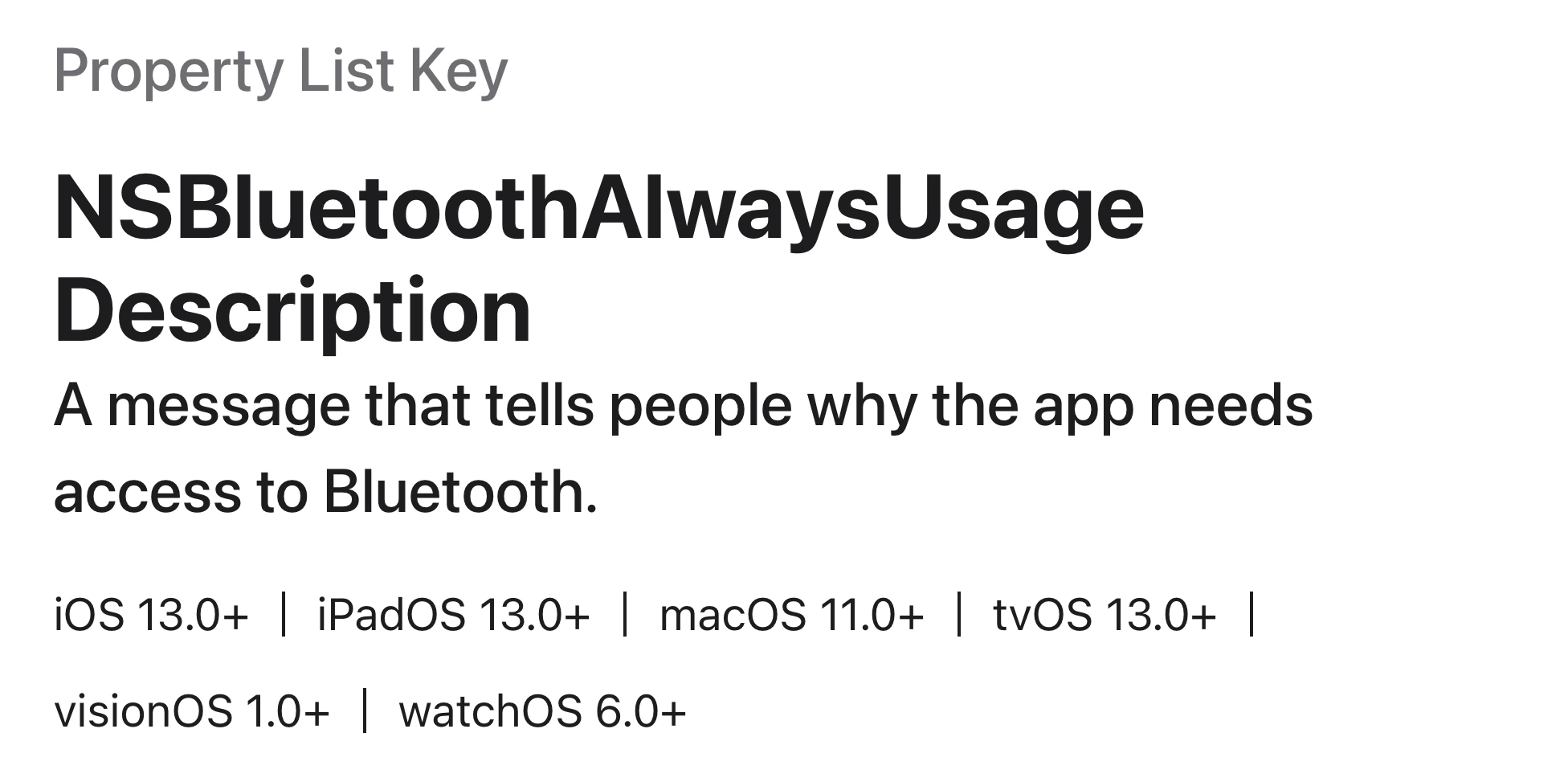
Apple Developer reference for the Bluetooth usage-description key, captured November 2, 2026. Source. This describes a declaration, not a record of granted access.
If you are comfortable with Terminal, this reads the same field from that app’s installed bundle:
/usr/libexec/PlistBuddy \
  -c 'Print :NSBluetoothAlwaysUsageDescription' \
  /Applications/Telegram.app/Contents/Info.plist
It does not change permission. Your app version or installation path may differ. A missing key or file is a limit of this particular inspection, not proof that an app has no Bluetooth-related behavior. For an unfamiliar application, start with its visible prompt and official support page instead of guessing bundle paths.
Another reason: finding a device for a specific feature
Logitech gives a useful vendor-specific example. Its Options+ installation troubleshooting guide says that, from macOS 12.4 onward, Bluetooth permission is needed to detect devices that are not actively connected. Without that detection, Flow cannot switch into the computer as described in the guide.
That does not mean every mouse utility, chat app, or audio app needs the same permission for the same reason. The valuable part is the chain of explanation: named feature → required discovery → relevant permission.
An app may also request other permissions for other jobs. Bluetooth access does not stand in for Input Monitoring or Accessibility. Likewise, Local Network permission is a separate category. Avoid enabling an entire list merely because one feature is not working.
A practical allow-or-deny worksheet
Before changing access, answer these questions for the named app:
- What feature needs it? Write down the prompt’s explanation or the feature named in the vendor’s documentation.
- Do I use that feature? Separate something you need now from an optional integration you have never enabled.
- Does the timing fit? Record the action immediately before the prompt. Timing helps you reproduce the request; it does not prove the purpose by itself.
- What is the smallest useful test? Try the specific feature with your current setting and record the result before changing anything else.
- Can I explain the decision later? Keep the app version, date, chosen setting, and observed effect together.
If you do not need the stated feature, leaving access denied is a reasonable starting decision. If you want it and the explanation fits, you can revisit the app’s entry in Bluetooth privacy settings. Follow a vendor’s relaunch instruction when one is provided; Logitech, for example, documents Quit & Reopen after its permission change.
If the feature still fails
Check the vendor’s current instructions for your app and macOS version. Confirm that you tested the feature its Bluetooth explanation actually describes. A failed test after changing permission does not establish that permission was the only missing condition.
Keep your troubleshooting report narrow: app version, macOS version, the prompt’s wording, current access setting, and the exact action that failed. That is more useful than resetting Bluetooth, removing every paired device, or changing unrelated privacy categories before you know which layer is involved.


