In this article
Check the app and the feature first
Apple’s Local Network settings guide shows where to allow or deny access for each listed app. Read the app name and its explanation before changing anything.
Consider two separate jobs a desktop app might perform: signing in to an online account and finding a device beside you. A successful sign-in does not establish that device discovery works. A missing device does not establish that the whole app is offline.
Write down the feature that fails, the exact error, the app version, and whether the target is nearby or an online service. “Cannot find my speaker” gives you a much better starting point than “the network is broken.”
If the app is absent from the list, that alone does not show a denied request. The list is not an inventory of everything installed on the Mac. Avoid adding unrelated permissions just to make an entry appear.
Separate three different controls
| Control | Question it helps answer | What it does not prove |
|---|---|---|
| Privacy & Security → Local Network | May this app perform covered local-network operations? | That the app is disconnected from the internet |
| Network → Firewall | Can incoming connections reach permitted apps or services? | That every outgoing request is blocked |
| An outgoing network filter | What outgoing traffic do its configured rules allow? | That the Local Network setting has changed |
Apple describes the Mac firewall as protection against contact initiated by other computers. Its Options list serves that incoming-connection purpose. Selecting a restrictive setting there is not a reliable substitute for a rule aimed at an app’s outgoing traffic.
If your actual objective is to stop an app contacting internet services, define that objective before choosing a tool. Check any filter’s documented coverage and test the specific operation you care about. This article does not recommend buying a filter or promise that one switch can cover every helper and connection.
The boundary has documented exceptions
Apple’s current TN3179 technical note is more precise than the word “network” on a switch. Local Network privacy arrived on Mac with macOS 15. Covered operations include outgoing connections to local addresses and Bonjour discovery. Accepting an incoming TCP connection is a different case.
The note also lists exceptions, including traffic to a local DNS server or configured proxy, and traffic originating from Safari or a WebKit web view. On macOS, root programs, launchd daemons, and command-line tools run from Terminal or SSH receive special treatment. The daemon exception does not extend to launchd agents.
Those details make a useful diagnostic rule: a successful Terminal command or browser test is not a faithful permission test for a separate desktop app. Test the affected feature in that app.
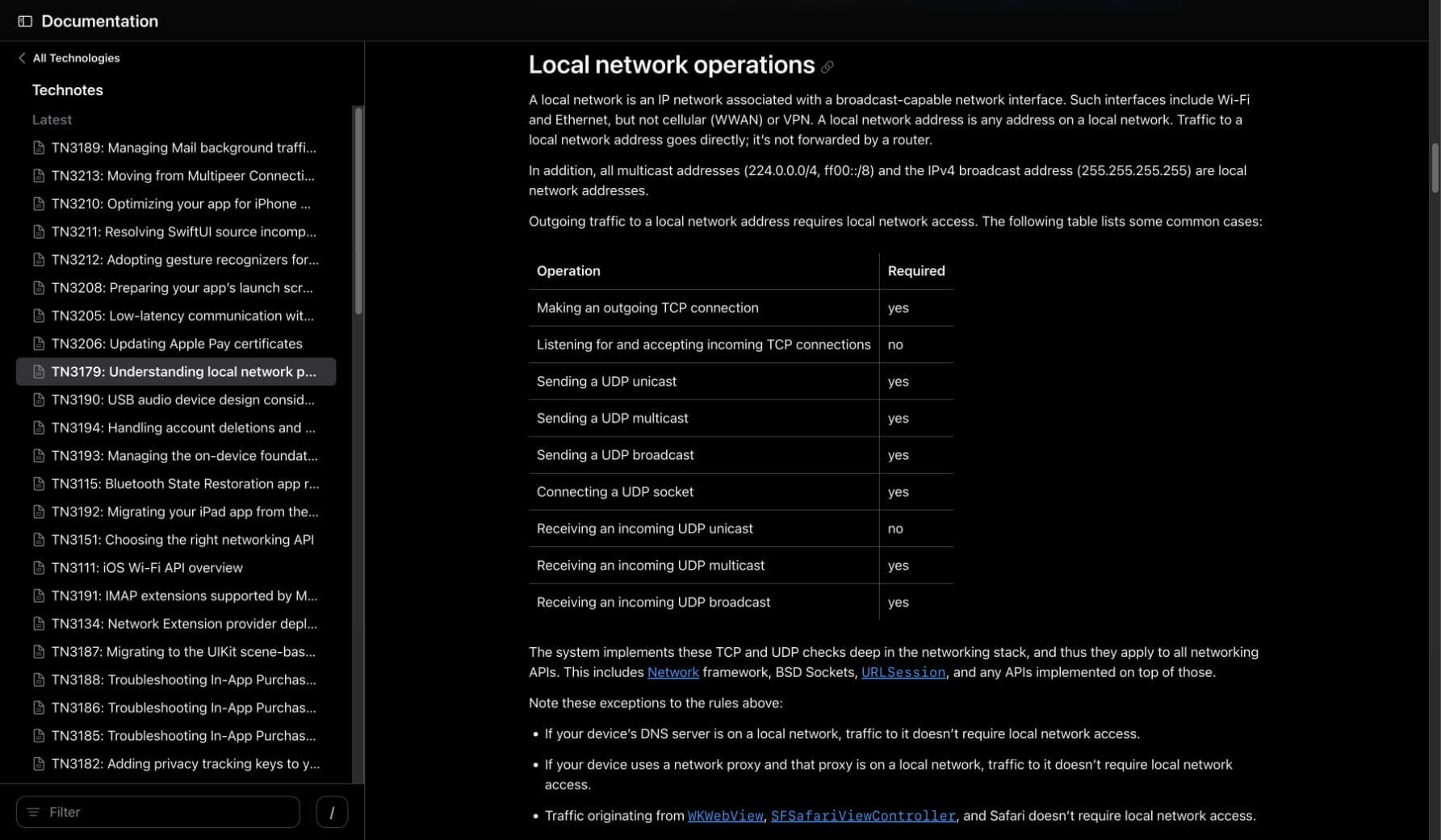
Apple Developer, TN3179: Local network operations, captured September 28, 2026. The table distinguishes outgoing connections from incoming ones; exceptions appear below it.
Use a two-part troubleshooting worksheet
The following is an editorial checklist, not a claimed experiment on your network. Keep the app, account, and network unchanged while recording your initial observations.
Part one: describe the two destinations. Name a feature that contacts an online service, if the app has one. Then name the exact local feature that fails, such as finding or connecting to a device you own. Avoid using an unfamiliar public test server merely to produce traffic.
Part two: compare what you actually saw.
| Observation | Useful next check |
|---|---|
| Online feature works; nearby device is missing | Inspect Local Network permission and the app’s discovery instructions |
| Neither feature works | Check the broader connection and service status before blaming this permission |
| Device is found but the next action fails | Record that later error; discovery and completing a task are separate steps |
| A Terminal test works but the app fails | Return to the app’s own result; the processes do not have equivalent permission treatment |
Record outcomes as observations, not conclusions about a cause. “Device list stayed empty at 10:15” is reproducible. “macOS blocked everything” usually is not.
If the app has a legitimate need to use a nearby device, follow its current setup instructions and make only the permission choice you intend. Repeat the same feature afterward. Do not disable the firewall, reset all privacy decisions, or change several settings at once as a first diagnostic step; that makes the comparison harder to interpret.
Why an allowed app may still miss a device
Permission is one requirement in a larger workflow. Your record should also include the selected network, whether the device is awake, and whether you are following the app’s supported discovery method.
For example, a guest network may separate devices that appear to share the same Wi-Fi service. A device can also be available through a route that the app’s discovery feature does not search. An empty list needs investigation; it is not a complete census of the network. Our guide to incomplete ARP results explains another common source of that confusion.
Apple’s 2024 developer session below introduces the macOS permission change in the Permission changes chapter at 15:02. It is background for the feature’s introduction; the current technical note above supplies the detailed exceptions.
Observe connections without confusing them with permission
If the question becomes “what connections can I see for this app?”, use the separate Mac app connections guide. Connection observations answer a different question from a setting’s state.
VaultDog’s Network Watch can provide connection metadata for investigation. It does not block those connections or certify that an app’s Local Network permission works correctly. A visible connection is evidence of that observation; an empty view is not proof of zero traffic.
Keep the setting, the operation, and the observed result together in your notes. That gives you a precise report for the app’s support team and a clear basis for deciding what to check next.