In this article
That distinction explains a surprisingly common puzzle: a Mac displays a capitalized filename, yet an app reports that a differently capitalized version already exists. The visible spelling and the rules used to look up that spelling are separate properties.
Check the volume that actually contains the file
Open Disk Utility, select the volume holding the file, and use the Info button to inspect its format. An external drive or a separate volume can behave differently from your usual startup volume. Check the destination too when the problem happens during a copy.
Apple’s Disk Utility format guide lists APFS and its case-sensitive variants separately. APFS (Encrypted) describes encryption; the case-sensitive variant explicitly includes Case-sensitive in its name. Encryption alone does not make uppercase and lowercase distinct filenames.
| Volume format | Two names differing only in case |
|---|---|
| APFS | Resolve as the same name in one directory |
| APFS (Encrypted) | Resolve as the same name in one directory |
| APFS (Case-sensitive) | Can identify separate files |
| APFS (Case-sensitive, Encrypted) | Can identify separate files |
These rows describe APFS. They are not a promise about every network share, cloud service, or other filesystem a Mac can access. In a synced folder, the provider and remote destination may impose additional naming rules.
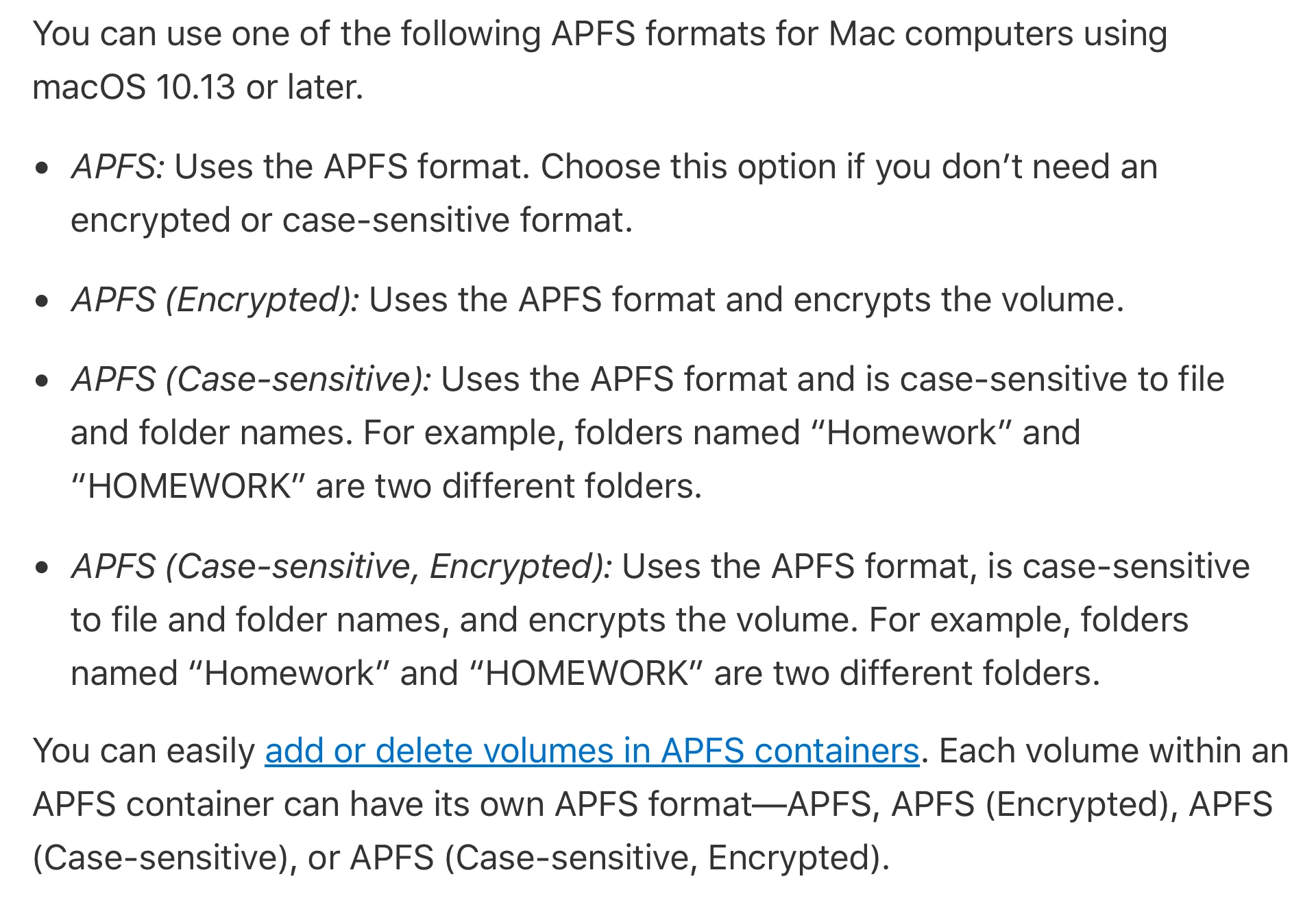
Excerpt from Apple Disk Utility User Guide, captured November 23, 2026. The format description is documentation, not a screenshot of our test disk.
Preserving a capital letter is different from requiring it
Case-preserving means the filesystem remembers the spelling of a stored name. Case-insensitive means a lookup can find that name despite differences in letter case. Those behaviors can coexist.
For example, a directory can show Receipt.txt while opening RECEIPT.TXT reaches that same file. That does not mean a second uppercase copy exists somewhere hidden. It means the lookup rules accept both spellings for the stored entry.
Apple’s archived APFS technical FAQ explains this distinction. That older technical document is useful background; the current Disk Utility guide and the bounded test below provide the context for this article.
The distinction applies to directory names as well. But this is not a complete guide to Unicode equivalence, accents, or every character a filesystem permits. Our experiment uses ordinary ASCII letters so the case question stays isolated.
A one-file test on a Mac
On November 23, 2026, we created a disposable file on an APFS volume using macOS 15.7.5, build 24G624. The file was named Receipt.txt and contained a 16-byte text marker. We inspected only this publication’s test directory.
We then changed the spelling used to access it, attempted a second creation that was explicitly forbidden from overwriting anything, and finally renamed the original.
| Operation | Observed result |
|---|---|
Create Receipt.txt | One file appeared with that spelling |
Read RECEIPT.TXT | Returned the original marker |
| Compare the two paths’ file identity | Both resolved to the same file |
Exclusively create receipt.txt | Failed with “file exists”; original content stayed intact |
Rename to RECEIPT.txt | Stored spelling changed; the inode and content stayed the same |
For the exclusive-create step, the test used Python’s open(path, "x") mode. This matters: an operation that opens an existing file for writing would be a different experiment and could change its contents.
The inode number stayed 68828044 across the rename, and the directory still held one file. That number identifies our recorded fixture, not a value readers should expect on their own Macs.
This verifies case-insensitive lookup and case preservation on our tested volume. We did not run the same experiment on a case-sensitive volume, a network share, or a cloud provider. The case-sensitive comparison in the earlier table comes from Apple’s format documentation.
When you need to keep both files
If two incoming files differ only by capitalization, give them names that differ beyond case before bringing both into a case-insensitive destination. For instance, Receipt-original.txt and Receipt-revised.txt remain distinguishable without relying on a capital letter.
A ZIP archive or a source repository may contain both Readme.txt and README.txt. Whether an extraction or checkout rejects, renames, or overwrites a collision depends on the tool and its settings. An archive’s file count alone does not prove that every entry survived extraction.
Before accepting a replacement prompt:
- Identify the source and destination volumes.
- Compare the complete filenames, including extensions.
- Establish whether the files contain different material.
- Preserve the original source until you have checked the destination.
A SHA-256 comparison can help compare file bytes, but matching bytes do not establish that two paths refer to the same file. Conversely, differing names do not guarantee separate content. Those are different questions.
Changing a volume’s format is a much larger operation than resolving a pair of names. A naming collision by itself is not a reason to erase a working disk.
Rename the spelling without inventing a second copy
If your goal is simply to capitalize an existing name, use Finder’s normal rename action and then inspect the displayed result. Our native rename test demonstrates that a case-only spelling change can keep the same file identity. An app or sync service may handle that operation differently, so check its result instead of inferring success from the typed name.
Changing .txt to .TXT is also a spelling change; it does not rewrite the file’s contents. More broadly, changing an extension is not file conversion.
Finally, do not confuse this behavior with two hard links to one file. Our case test had one stored directory entry reached through case-insensitive lookup. Hard links involve distinct directory entries. When a Mac says a differently capitalized name already exists, start with the actual volume’s naming rules before treating it as a duplicate-file problem.