
In this article
A clipped label can make different helpers look identical. It can also make a recognizable application name look unfamiliar. Before attributing an open file or connection to an app, separate the display label from the running process it describes.
Expand the name while keeping your filters
For one process, use lsof +c 0 -nP -p 12345, replacing 12345 with the PID you are investigating. The PID is a placeholder, not a process you should expect to find.
The plus sign matters. +c controls the displayed command-name width; -c selects processes by command name. Swapping them changes the question being asked.
The upstream lsof manual documents the nine-character default and the special width of zero. The name still depends on what the operating system supplies. “All available characters” is not a promise to reconstruct a launch command.
| What you want | Native inspection |
|---|---|
| Expand COMMAND for one PID | lsof +c 0 -nP -p 12345 |
| Inspect its command path separately | ps -ww -p 12345 -o pid=,comm= |
| Inspect its current argument display | ps -ww -p 12345 -o pid=,args= |
Here, -nP keeps network addresses and ports numeric. It does not fix truncation. Likewise, widening the Terminal window does not remove a width limit chosen by lsof itself.
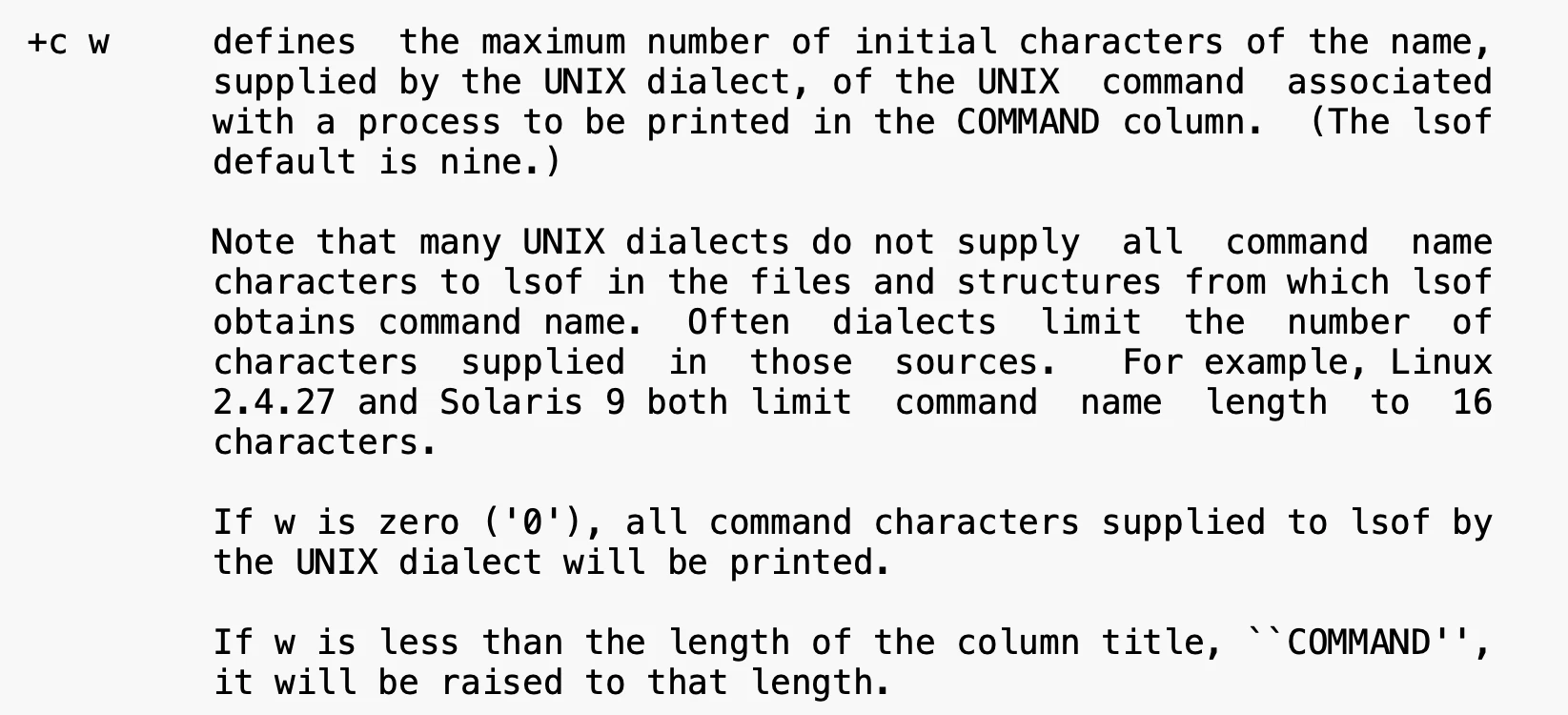
Excerpt from lsof manual, captured November 23, 2026. This is the current upstream reference; our Mac test used the installed version identified below.
Two different helpers, one short label
We tested the Mac’s /usr/sbin/lsof version 4.91 on macOS 15.7.5, build 24G624, on November 23, 2026.
For the test, we compiled two tiny programs with different filenames. Each did only one thing: sleep for 60 seconds. Their names shared a long prefix, so the default output would have little room to distinguish them. We inspected our own test processes and stopped them afterward.
| Test process | PID in this run | Default COMMAND |
|---|---|---|
VaultDogSamePrefixHelperAlpha | 66550 | VaultDogS |
VaultDogSamePrefixHelperBeta | 66554 | VaultDogS |
Both labels were exactly nine characters. Yet there were two processes, two executable paths, and two different executable files.
Adding +c 0 exposed VaultDogSamePrefixHelperAlpha for the first process and VaultDogSamePrefixHelperBeta for the second. The output therefore contained more than 16 characters on this Mac. A blanket rule that macOS can never show more than 15 or 16 command-name characters would not describe this result.
We used lsof -a -p PID -d txt for the short display and added +c 0 for the expanded display. Selecting program-text rows kept this particular comparison small. It did not change the names of either program.
This test demonstrates ambiguity introduced by display width. It does not establish that every process will expose its complete original executable name, or that every installed lsof build behaves identically.
Check the PID and path together
Once you have a PID, ask ps about that same running process. Apple’s ps manual source distinguishes the command and argument fields and documents wide output. You can also read the installed reference with man ps.
In our fixture, ps -ww -p 66550 -o pid=,comm= returned the path ending in VaultDogSamePrefixHelperAlpha. The second PID returned the Beta path. That corroborated the distinction hidden by the original COMMAND column.
The args field answers another question: what argument text is currently available for that process. Our helpers had no additional arguments, so their displayed lines contained only their launch paths. A real app may show switches, document paths, or other values. Review that text before pasting it into a public support request.
Treat a PID as a current observation. A process can exit between commands, and its numeric ID can later be reused. If the second command shows nothing or unexpectedly different information, refresh the original observation before drawing a connection.
Why txt rows are not a single-path guarantee
Another useful inspection is lsof -a -p 12345 -d txt. It combines the PID selection with program-text entries.
Our test returned two such rows per helper: one for the compiled executable and one for /usr/lib/dyld. Selecting txt therefore did not produce a guaranteed one-row answer to “which app is this?”
Read the NAME column and the surrounding process information. Do not take the first row as authoritative merely because the command finished successfully. The guide to lsof’s FD column explains why txt is different from a numbered file descriptor and its read/write suffix.
If your original output came from a port filter, preserve that context too. A matching port can belong to a client endpoint rather than the listener you meant to find; lsof port-filter semantics are independent of command-name width.
If +c 0 still does not identify the app
First check which command you ran and read its local manual. A separately installed version may differ from /usr/sbin/lsof. Then compare its expanded label with ps for the same live PID.
A helper can genuinely have a generic executable name. Several processes can also belong to one application. A fully expanded name is consequently one piece of identification, not proof of ownership, purpose, or safety. Activity Monitor’s process hierarchy can add useful context when a familiar app has several helpers.
For a useful diagnostic note, record the time, the exact inspection command, the PID, the expanded label, and the path evidence you actually saw. Keep any ownership conclusion separate from those observations.
Expanding COMMAND solves a display problem. Verifying the current process and its path solves the next identification problem. Neither step requires stopping an unfamiliar process just to see what disappears.


