
In this article
A line ending in 3u is not evidence that an app just changed a document. Read the PID, FD, TYPE, and NAME together before deciding what the line tells you.
Start with Activity Monitor, then inspect the FD column
Open Activity Monitor, find the app or process, and double-click its row. In the process information window, Open Files and Ports provides a useful first look at the resources it holds.
Apple’s process information guide explains how to select and inspect a process. If several helper processes have similar names, confirm the intended process and its PID before switching to Terminal.
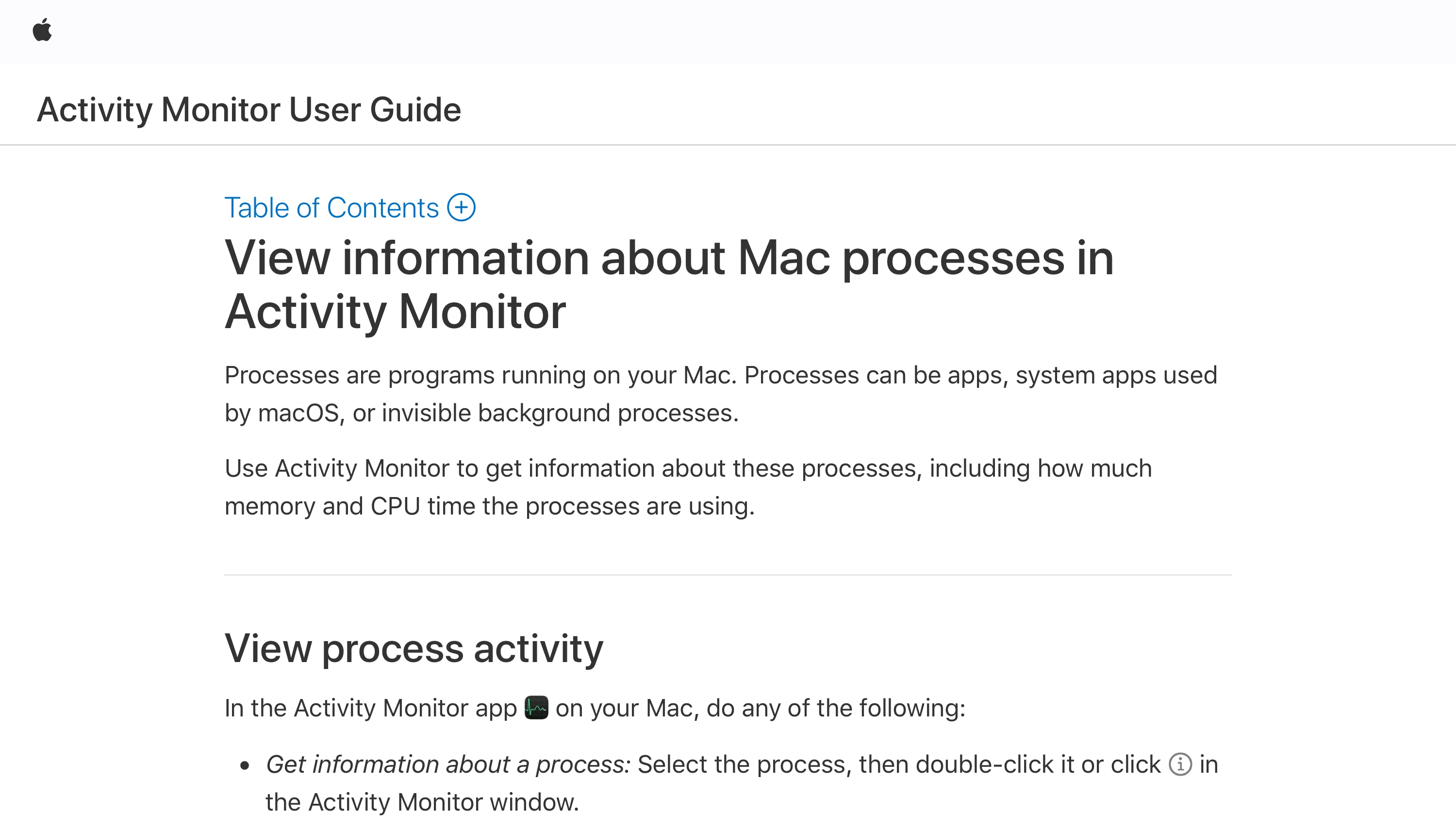
Source: Apple’s process information guide, captured November 19, 2026. Identifying the correct process comes before interpreting its open handles.
For the detailed command-line columns, run:
lsof -nP -p 12345
Replace 12345 with the current PID. The command inspects open resources; it does not close them. The -nP options keep network addresses and port numbers numeric if socket rows appear.
Our Activity Monitor ports guide covers a separate trap: the process’s “Ports” count is not a count of internet connections.
Read the number and its suffix separately
The number in FD is a descriptor number within that process. A suffix describes the mode of that particular open handle.
| FD value | Interpretation | What it does not establish |
|---|---|---|
3r | Descriptor 3 is open for reading | A read is happening now |
4w | Descriptor 4 is open for writing | Bytes have been written |
5u | Descriptor 5 is open for reading and writing | Both operations are occurring |
cwd | The process’s current working directory | A numbered document handle |
txt | Program text, including code and data | A plain-text document being edited |
The upstream lsof manual documents these fields. Here, “program text” is a technical label: txt does not mean a .txt file.
An additional character can describe a lock after the access-mode suffix. Do not collapse a longer FD value into the three basic examples above. Use the OUTPUT and LOCKS sections of the manual shipped with your Mac, available through man lsof, when a lock marker appears.
Descriptor numbers are local to a process and can be reused after closing a handle. Descriptor 3 in one process has no necessary relationship to descriptor 3 in another.
One unchanged file, three different modes
We tested this on macOS Sequoia 15.7.5 on November 19, 2026. An owned Python process opened the same owned, 16-byte regular file three times: read-only, write-only, and read/write.
The write-only open did not include a truncation flag. The process then kept those handles open without reading or writing through them while we inspected it with the Mac’s /usr/sbin/lsof.
For PID 83959 and the file descriptor-sample.txt, these columns are transcribed from the captured output. The full local pathname and account name are omitted:
| FD | TYPE | Bytes |
|---|---|---|
3r | REG | 16 |
4w | REG | 16 |
5u | REG | 16 |
All three rows described the same file. Its SHA-256 digest before and after the inspection matched, and its modification timestamp remained unchanged. The 4w and 5u rows existed even though those handles performed no writes.
This demonstrates the narrow point: opening with write access is different from performing a write. It does not mean a different app with similar rows has no pending work, or that its other handles are idle.
Keep access mode, permissions, and file type separate
An open descriptor’s mode is not the same thing as the file’s owner/group/other permission bits. It is also not a report of every macOS privacy permission granted to an app.
For example, one read-only handle does not prove that the process is unable to write the file through another handle. Our test deliberately held all three modes at once. To investigate the filesystem’s permission display, use the separate guide to the at sign and plus sign in Mac file permissions.
TYPE answers another question. REG identifies a regular file, DIR a directory, and IPv4 or IPv6 a network socket. A u suffix on a socket is not a claim that a disk document is being updated. Socket addresses and connection states belong to the other columns.
Narrow the inspection to one process and file
If a long output is confusing, combine a known PID with an exact pathname:
lsof -nP -a -p 12345 -- "/path/to/document.txt"
Replace the PID and path. Here, -a requires the selection conditions to match together. Keeping this inspection narrow also avoids collecting unrelated filenames from other work.
When reviewing a result, check these facts in order:
- PID: Is this still the intended process? Restarting an app can change it.
- NAME: Is this the exact file you meant, rather than a copy?
- TYPE: Are you looking at a regular file, directory, or socket?
- FD: What mode does this specific handle have?
- Question: Do you need an open-handle snapshot or evidence of activity over time?
No output can reflect timing, a mismatched path or PID, or inspection limits. It is not proof that no process has ever used the file. Avoid escalating privileges or force-quitting an unfamiliar process merely because the first command was empty.
For actual disk activity, start with Activity Monitor’s Disk view and observe changes over time. Those counters describe process activity rather than a complete per-file audit. If your real problem is storage retained after deletion, a deleted file can remain open; interpreting its mode alone does not decide whether it is safe to stop the process.


