
In this article
The distinction helps explain a common puzzle: a utility may respond to a shortcut but fail to insert text, or it may need two permissions for one apparent feature. Permission names describe access boundaries. They do not provide a universal checklist for every keyboard or mouse app.
Start with the two Privacy & Security lists
Open System Settings, choose Privacy & Security, and inspect Input Monitoring and Accessibility separately. The Accessibility permission list is different from the main Accessibility settings category used to configure features such as Zoom.
Apple’s Input Monitoring guide explains that an app can monitor input while you use another app. Its Accessibility access guide describes permission to control the Mac through accessibility features. Apple advises checking an app’s terms and privacy practices before granting access.
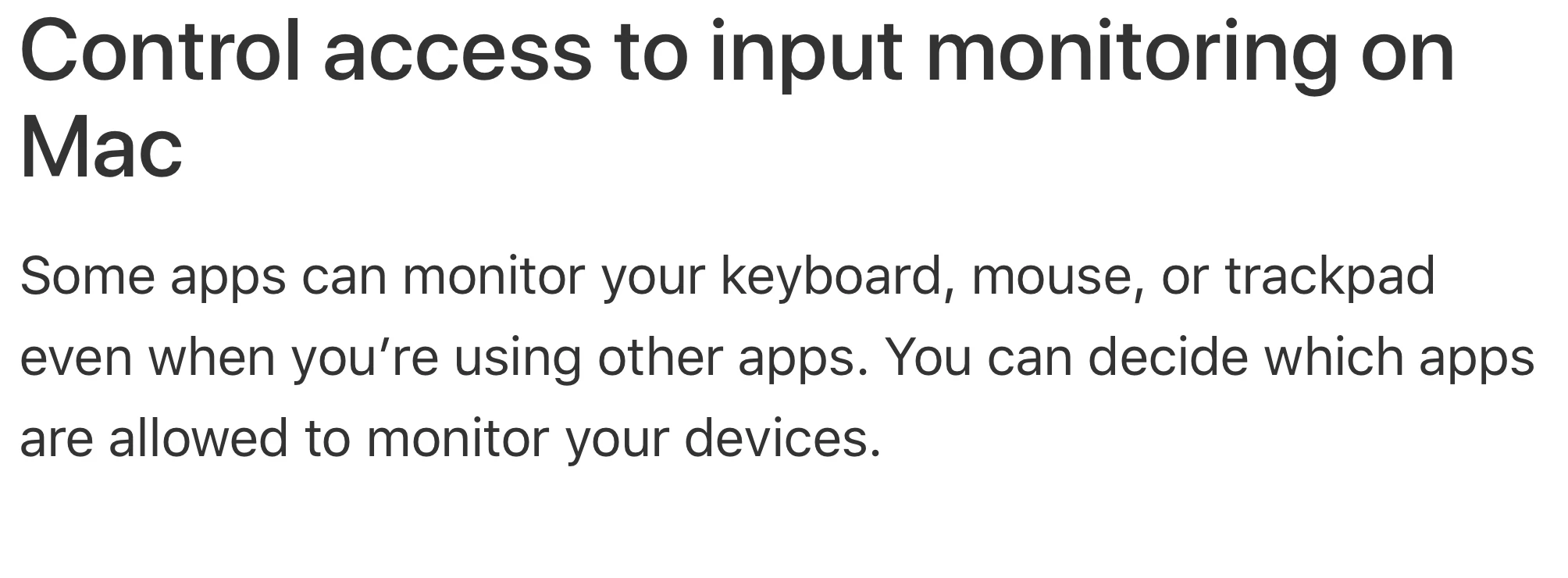
Screenshot: Apple’s Input Monitoring guide, captured October 27, 2026. This is documentation, not a list of permissions granted on a particular Mac.
Find the exact app named in the prompt. If its purpose is unclear, leave the request unapproved while you check its documentation. A familiar icon or a plausible app category is not an explanation of why that particular feature needs access.
Compare what the permission allows
| Permission | What to understand | What the name does not establish |
|---|---|---|
| Input Monitoring | The app may observe input beyond its own active window | Whether it stores input, sends it elsewhere, or uses only a shortcut |
| Accessibility | The app may control the Mac through accessibility features | That it also has every other privacy permission |
| Both requested | The app may have more than one input or interaction requirement | That both are necessary for every feature you use |
Avoid reducing the distinction to “one reads, one writes.” That shorthand can make Accessibility sound narrower than it is. More useful questions are: which feature needs this access, what data does the developer say it handles, and what works without the permission?
If the prompt instead names Automation, it concerns a different permission. Our Automation versus Accessibility guide explains that separate comparison. Likewise, an app’s declared capabilities are not a live list of user approvals; see entitlements versus permissions.
Three documented apps, three different permission patterns
We compared the current developer documentation for three utilities on October 27, 2026. This is a documentation comparison, not a hands-on privacy audit or a recommendation to install them.
| Documented app | Input Monitoring | Accessibility |
|---|---|---|
| Logi Options+ | Logitech lists it for features including scrolling and gestures | Logitech lists it for most basic features, including scrolling and gestures |
| TapNoise | Listed for ordinary keyboard sound feedback | Listed for its optional shortcut sheet, Clean Mode, and some knock actions |
| OpenASR Desktop | Its documentation says it does not request this permission | Listed for dictation text insertion and its global shortcut |
Sources: Logitech’s permission guide, TapNoise’s explanation, and OpenASR Desktop documentation.
The useful result is the variation. Two apps that react to keyboard input do not necessarily request the same permissions. A generic rule such as “all global shortcuts require both toggles” would give the wrong advice for at least one of these documented implementations.
The examples also separate an app’s baseline behavior from optional features. TapNoise documents a split between its ordinary feedback and additional controls; Logitech describes overlapping requirements for its device features. Start with the feature you actually intend to use, then read that developer’s explanation. Do not copy another app’s setup just because both involve a keyboard.
These statements can change with app versions. If your installed version behaves differently, use its current support instructions and record that version when reporting the mismatch.
Use a feature-by-feature check before changing access
This worksheet keeps the decision specific without experimenting with sensitive text:
- Name one task. For example, “use the mouse’s custom back button” or “insert a dictated sentence.” “Make the app work” is too broad to test.
- Record the current state. Note the app version and whether it appears in each of the two permission lists. A name appearing in a list is not enough; check whether its access is enabled.
- Read the matching vendor section. Identify whether the permission is required for that task, an optional capability, or an unrelated integration.
- Choose the access deliberately. If the feature and the requested access make sense to you, follow the app’s documented setup. If they do not, keep the request unapproved and ask its developer for the missing explanation.
- Test with harmless content. Use a disposable document and an ordinary sample sentence. Record exactly what works and what fails.
- Stop when the intended task works. A successful feature test does not establish how the app handles every piece of data it can access.
Do not use passwords, payment details, or private correspondence as test input. The point is to identify a feature dependency, not to prove every security boundary through trial and error.
If a feature still fails, avoid adding unrelated permissions
Restart behavior is app-specific too. Logitech’s guide tells users to choose Quit & Reopen when prompted after enabling Input Monitoring. OpenASR says its Accessibility check updates while the app is running. Follow the instructions for the actual app rather than assuming every permission change needs the same restart sequence.
Check for a version mismatch, a different installed copy, or a missing setup step before broadening access. Preserve a short record of the prompt, app version, affected feature, and current toggle state for support. Do not reset all privacy permissions as a first diagnostic step.
Full Disk Access is not a general repair for a keyboard permission problem. It concerns a different boundary, covered in Full Disk Access versus Files and Folders.
When you stop using a utility’s input features, review its entries again in Privacy & Security. Turning off an approval changes access; it is not the same operation as uninstalling the app or deleting its saved data. Keeping those decisions separate makes the result easier to verify.


