
In this article
The useful follow-up is to connect that state with what you expected the app to do. An idle window, an audio player, and an app exporting a project are different situations. A single Yes or No cannot diagnose all three.
Start with the app’s current row
Open Activity Monitor from Applications → Utilities, select Energy, and find the app. If a column is hidden, inspect View → Columns. Note the time and the app name before switching windows or starting another task.
Apple’s current Energy pane guide defines App Nap as a current state. It separately defines Energy Impact as a relative measure of energy use and Preventing Sleep as whether an app is keeping the Mac awake. Read those labels independently.
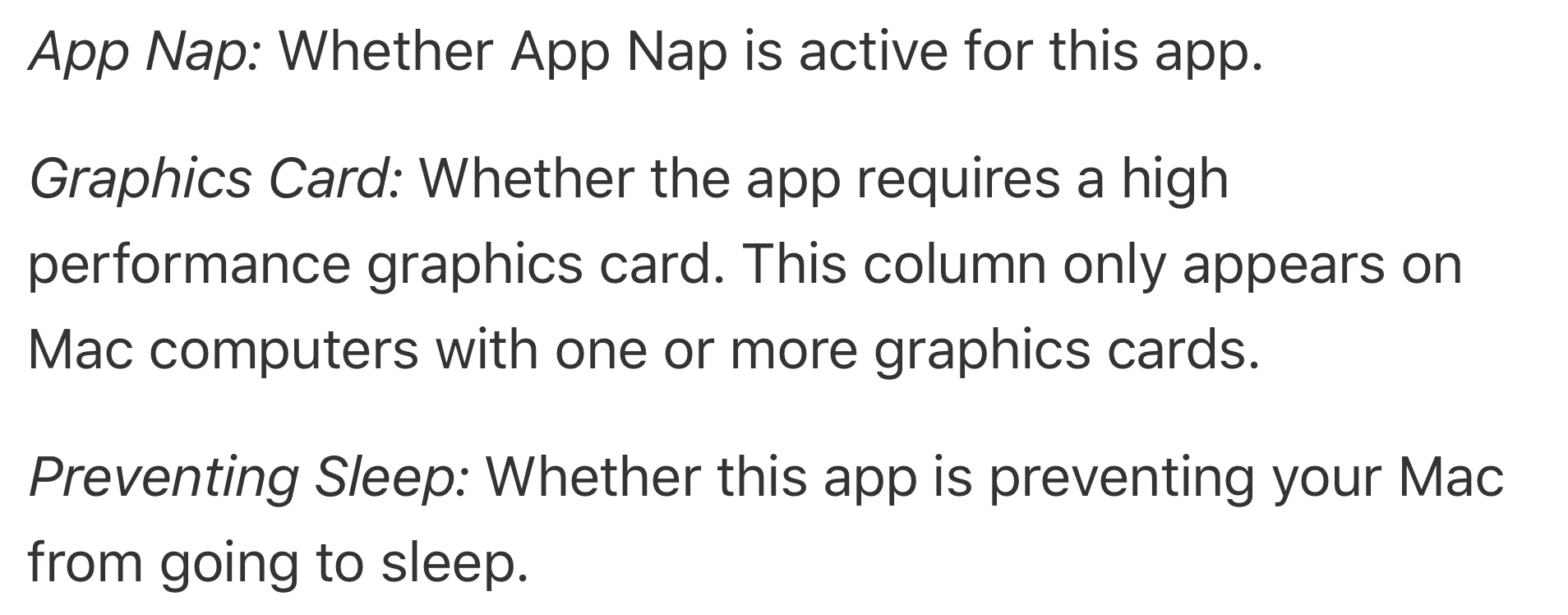
Screenshot: Apple’s Activity Monitor guide distinguishes App Nap from Preventing Sleep. Captured October 26, 2026.
Start with a familiar app rather than an unfamiliar system process. If it has several related processes, keep track of the row you are watching. Our guide to multiple processes for one Mac app explains why an app name and its helpers need not represent one identical unit of work.
What App Nap changes
Apple’s archived App Nap engineering guide describes reduced scheduling priority, less frequent timer firing, and throttled input/output when foreground apps need the device. These measures reduce background competition for resources. They do not amount to quitting the app.
Eligibility depends on several signals, including visibility, recent drawing, audio, and requests made by the app. Hiding a window can make an app a candidate; it does not promise a Yes value after a fixed delay. Bringing it forward can end the nap, so checking by clicking its window can change the state you wanted to observe.
That developer guide was updated in 2016. It explains the mechanism, while Apple’s current user guide confirms the column’s meaning. Do not turn its older implementation details into a universal timing rule for every modern app or macOS release.
In particular, No is not a failure grade. If your music is playing or your requested work is advancing, there may be a good reason for the app to remain active. Likewise, Yes is not a battery-savings measurement: you still need actual measurements to claim a particular reduction.
Keep three questions separate
| Question | Useful observation | What it does not establish |
|---|---|---|
| Is App Nap active for this app? | App Nap column | Whether the app is broken |
| Is an app keeping the Mac awake? | Preventing Sleep column | Whether a background task is progressing |
| Is my requested task advancing? | The app’s progress, output, or completion result | Why its scheduling state changed |
If the problem is that the whole Mac will not sleep, follow the separate Preventing Sleep investigation. Avoid treating that problem as interchangeable with a background export that appears slow.
A permission to operate in the background is another separate matter. Login and background-item settings concern how software starts or operates; an App Nap observation is not a reason to remove its startup entry.
Use an observation worksheet before changing anything
The following is an original troubleshooting checklist, not a benchmark or a claim that we reproduced a fault in your app. Its purpose is to produce a comparison you can explain to a developer.
- Define the symptom. Write “export progress stops changing after I hide the window,” rather than “App Nap is broken.” Pick a small, repeatable task using a disposable copy of your own project.
- Record the baseline. Note the app version, macOS version, task, time, and App Nap value. Record an observable progress measure, such as completed items, rather than relying only on a spinning indicator.
- Change one condition. Hide or cover the app as you normally would. Keep the task, power source, and other major workload as similar as practical.
- Observe without activating it. Watch its Activity Monitor row. Record whether progress can be observed from another legitimate source, such as an output file appearing. Do not invent progress data when the app exposes none.
- Bring it forward once. Note whether the value and task behavior change. Keep the observation order: checking a window first and recording App Nap afterward can miss the earlier state.
- Repeat the small comparison. One coincidence is a lead. A repeatable sequence is a more useful report. Stop if repeating would interrupt valuable work or create unwanted duplicate output.
Use a note with these fields: time; visible or hidden; App Nap; progress observed; action taken. Leave an unknown field unknown. You do not need to force a Yes result to complete the worksheet.
If useful work slows in the background
First check the app’s own pause controls, progress messages, and available updates. A task waiting for input or a network response can look idle without App Nap being its cause. Keep any conclusion tied to the observations you actually captured.
Apple’s guidance for lengthy user-initiated activities describes how developers tell the system about work the user expects to finish. A repeatable task-specific problem therefore belongs in a report to the app’s developer, with your worksheet and a small reproduction case.
Avoid making a system-wide App Nap override your first troubleshooting step. It changes the conditions for other apps and makes the original comparison less clear. If a developer recommends a specific workaround for your version, record the original setting and the supported way to undo that change.
Before sharing a screenshot, remove unrelated process rows, document names, and account details. A concise report showing the affected app, task, observed state, and timing is more useful than a full desktop capture with no explanation of what changed.


