
In this article
A download, recording, or long-running operation may reasonably need the computer to stay awake. The useful question is whether the request still makes sense after that task finishes. A single observation cannot explain everything that happened to the battery overnight, and it does not establish that an app is malicious.
Start in Activity Monitor’s Energy pane
Open Applications → Utilities → Activity Monitor, then select Energy. Find the app you are investigating and inspect Preventing Sleep. If the column is hidden, look in View → Columns for the relevant sleep or power-assertion column; wording can vary with macOS versions.
Apple’s Energy pane guide treats Preventing Sleep, Energy Impact, and App Nap as separate fields. Energy Impact is a relative energy-use measure. App Nap reports a different state. Do not read a sleep-prevention indication as a CPU percentage, a battery-health score, or proof that the app is consuming a large amount of power at that moment.
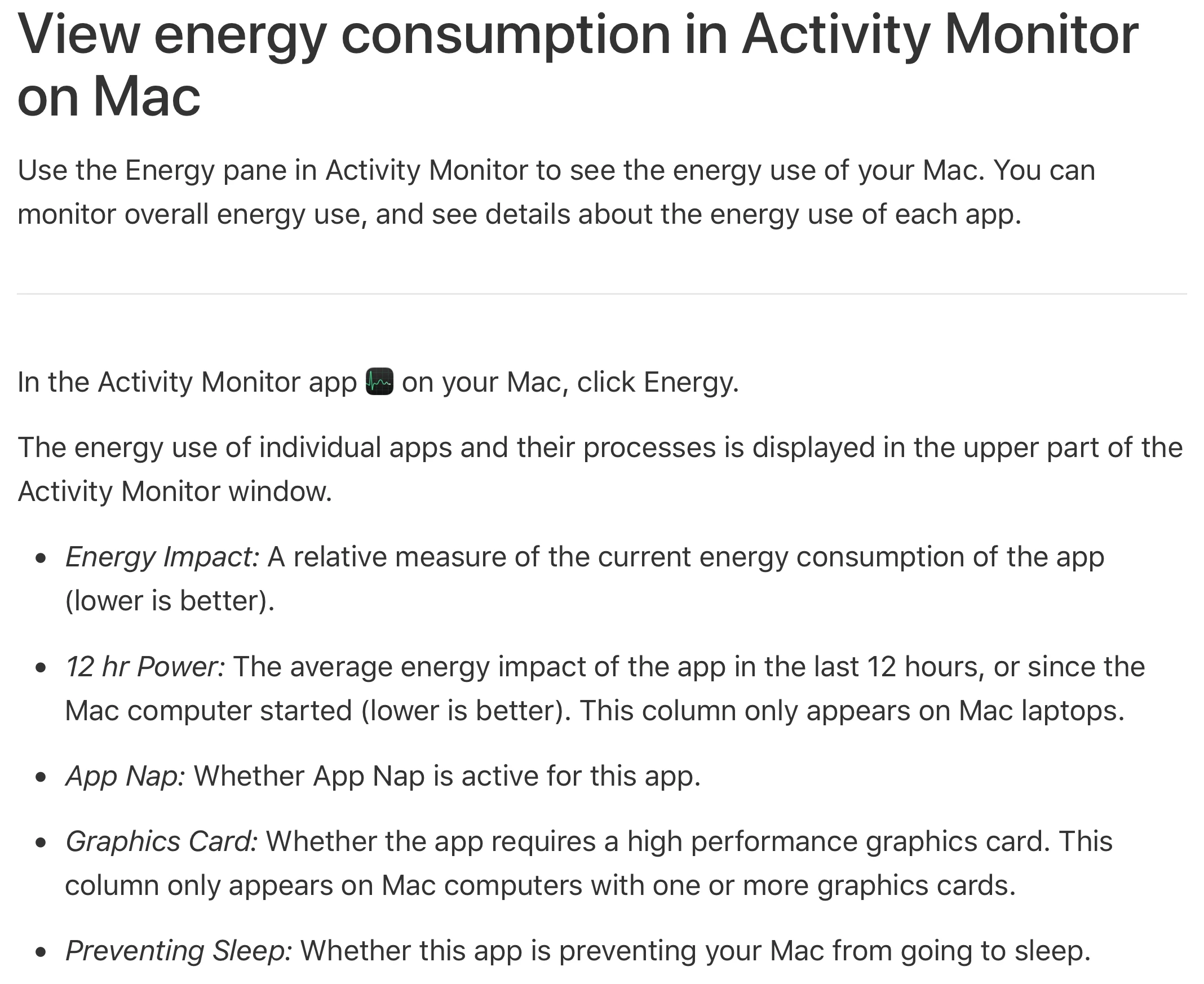
Screenshot: Apple’s Activity Monitor guide defines the Energy pane’s separate columns. Captured October 21, 2026.
If several similarly named processes appear, avoid guessing which one owns the behavior. An app can run a main process and helpers. Our guide to multiple processes for one Mac app explains why a repeated name is not automatically a duplicate installation.
Compare the same task before and after it stops
Choose a reversible change that belongs to the app you recognize. Pause its playback, finish a recording, let a transfer complete, or save your work and quit the app through its own menu. Then inspect the state again.
Keep a short record: the app, the task it was performing, the time, and what changed. “The request disappeared after I stopped playback” is more specific than “this browser prevents sleep.” It also gives the developer something reproducible if the request remains after the task ends.
Do not force-quit everything marked Yes. That can interrupt work without identifying the cause. Closing a window may also leave the app or its helper running, so record whether you stopped a task, closed a window, or actually quit. Those are different interventions.
Read current power assertions when you need more detail
For a read-only Terminal inspection, run:
pmset -g assertions
Apple’s Energy Efficiency Guide documents this command for checking power assertions. Its code samples and screenshots are older; the command was also checked against the local macOS manual and our current experiment below.
A power assertion is a process’s request affecting power management. The output includes a system summary and entries attributed to owning processes. Read the process name and PID together with the assertion type and reason. The reason is useful context supplied by software, not an independent explanation certified by macOS.
For this investigation, PreventUserIdleSystemSleep is particularly relevant: it requests prevention of idle system sleep. Keep it distinct from a display-sleep request. Do not assume that a dark screen proves the whole computer is asleep, or that one assertion type describes every way sleep can be delayed.
The output describes current state. If you run it after the suspected task has finished, it may no longer show that task’s request. Likewise, one process releasing its assertion does not prove that no other app or system condition is keeping the Mac awake.
A controlled six-second comparison
On October 21, 2026, we tested a disposable process on macOS 15.7.5. We ran the system utility caffeinate -i -t 6, which requests prevention of idle system sleep for six seconds, and queried pmset -g assertions before, during, and after that process.
The inspection retained only the row belonging to our test PID, so unrelated applications and private activity are excluded. We did not change sleep settings, force the Mac to sleep, or measure battery drain.
| Test stage | Row belonging to the test process |
|---|---|
| Before starting | No row for the test process |
| While it was running | PID 62549, caffeinate, PreventUserIdleSystemSleep |
| After its six-second timeout | No row for that PID; process exited successfully |
This narrow result demonstrates the lifetime of one request. The request existed while our process held it and disappeared after the process ended. It does not demonstrate that the Mac slept afterward: other requests and normal system conditions were outside the experiment.
You do not need to run a keep-awake utility to troubleshoot your own app. The useful pattern is the comparison: record the relevant request, stop the associated task normally, then inspect again. Keep the intervention small enough that you know what changed.
If a helper or system process appears
A process name is a starting point. Do not remove a launch file or terminate a system service merely because its name appears in assertion output. First establish whether a known app’s current activity explains what you see.
For an unfamiliar third-party helper, identify its owning application. A process PID can change on relaunch, so match it to the current instance when repeating a check. If the same app recreates the request after reopening, note the action that triggers it and report that sequence to its developer.
Login settings answer a different question. Open at Login and Allow in Background concern startup and background operation; they do not by themselves establish whether a process is currently holding a sleep-prevention request. Turning off an unrelated startup item is a poor substitute for observing the active task.
If the original symptom continues after the app’s request disappears, keep that result. It narrows the investigation instead of proving the app was responsible for every sleep problem. Preserve the macOS version, the relevant process row, and the smallest repeatable sequence; remove unrelated output before sharing it.


