In this article
Apple's current documentation calls the second section App Background Activity. Older macOS versions and many search results use Allow in the Background. Match the description beneath the setting if your wording differs.
Choose the setting that matches your goal
If your problem is an unwanted app window after sign-in, start with the Open at Login list. Select the known item and use the minus button to remove it. Apple documents this in its guide to adding and removing login items.
If your question is whether a supporting task may operate while the app is not open, review the background section. Apple's Login Items & Extensions reference gives updates and data synchronization as examples.
| What you want to know | First place to look | What it does not establish |
|---|---|---|
| Will this item open when I sign in? | Open at Login | Whether a separate helper is running now |
| May this app do supporting background work? | App Background Activity | Whether every task is currently active |
| Is a process running at this moment? | Activity Monitor | What caused it to start |
| Which app owns an unfamiliar helper? | Its identity, executable path, and vendor documentation | Whether it is safe to remove |
Treat these as separate questions when investigating an app. An entry in a configuration list and a live process observation describe different kinds of evidence.
A background switch can affect useful features
Consider Adobe Creative Cloud. Adobe's current login-item troubleshooting guide, updated April 24, 2026, explains that disabling its background items can interfere with features such as updates, libraries, fonts, and synchronization. That is a vendor-specific example, not a reason to enable every unfamiliar item.
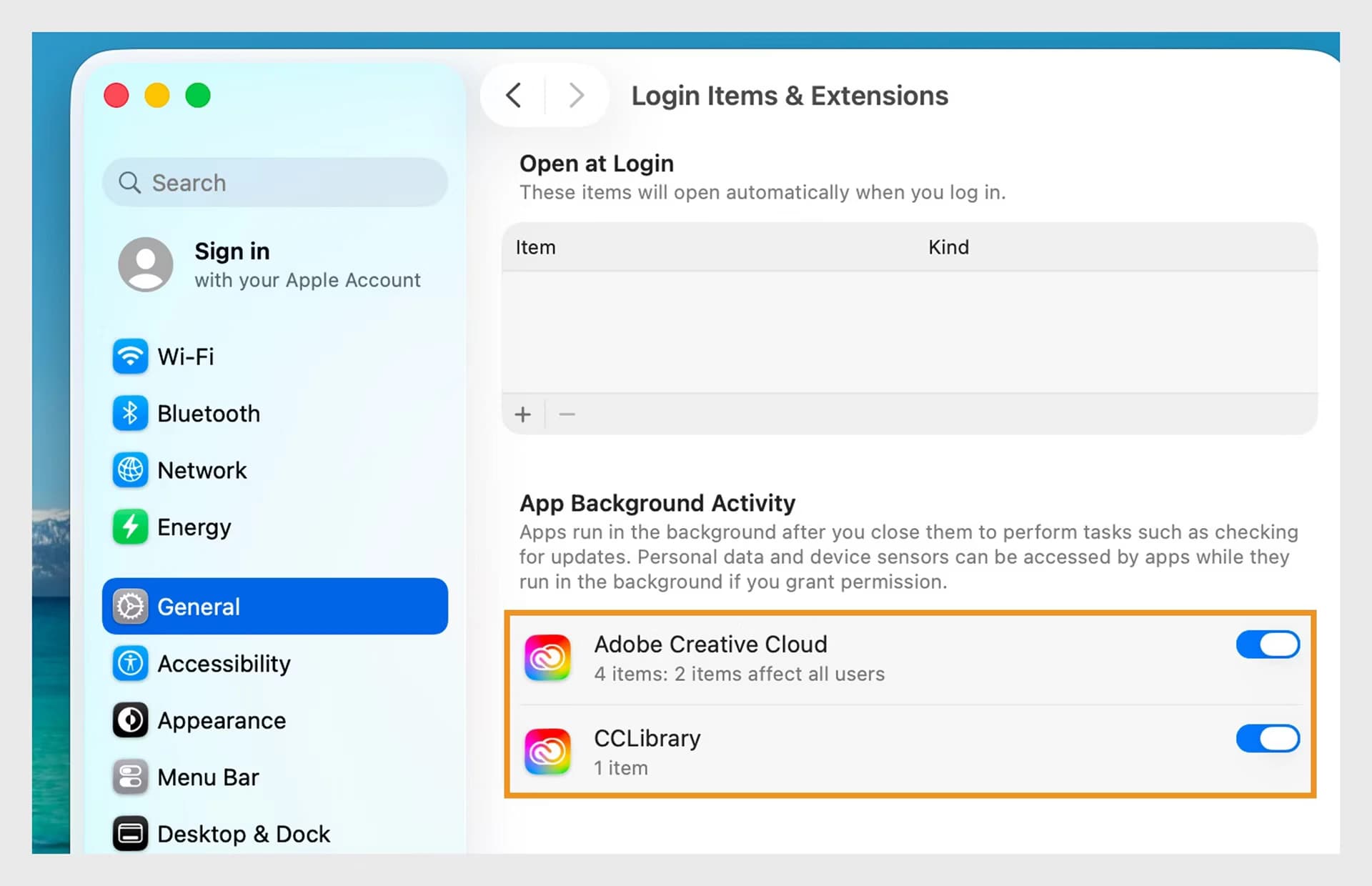
Source: Adobe's login-item guide, retrieved September 23, 2026. This is Adobe's documentation screenshot, including its orange annotation, not a capture of our test Mac.
The screenshot is useful because the top list is empty while the lower list has entries. It makes the distinction visible without implying anything about the current processes on your Mac.
Before changing a background item, identify the feature you would be giving up. An updater, a cloud library, and a menu bar utility serve different purposes. A generic instruction to switch everything off cannot make that decision for you.
A running app is not proof of automatic startup
For this article, we inspected Telegram 7.2.9 on one Mac on September 23, 2026. In VaultDog, its application passport reported no associated automatic startup entry. The filtered Startup Monitor nevertheless showed one running session service associated with Telegram.
A read-only check of the current user's launchctl list also showed the Telegram application service with a running process ID. We did not disable an item, restart the Mac, or test what launches at the next sign-in.
| Observation in this session | What it supports | What it cannot prove |
|---|---|---|
| Zero associated automatic startup entries in the scan | The scan did not associate an enabled automatic entry with this app | That every possible startup mechanism has been ruled out |
| One running session service | An associated service was running during the observation | That it will start automatically next time |
| A process ID in the current session | The service had a live process at that moment | Why it launched or how much work it was doing |
This is a snapshot of one installation, not a claim about Telegram's defaults on every Mac. Its practical value is the distinction: finding an app under Running now does not answer the Starts automatically question.
If you use VaultDog, select the app in Applications and open Startup Monitor from its passport. Compare the associated automatic entries with current service activity. The getting started guide explains the application passport workflow. Make the actual startup-setting decision in macOS; the monitor does not disable or terminate those services for you.
Test one change with a clear success condition
A short before-and-after note is more useful than a large cleanup performed all at once.
- Name the symptom. For example: “The main window opens when I sign in.” Avoid using “runs in the background” to describe every unwanted behavior.
- Record the current setting. Note the item name, the section it appears in, and whether it is enabled. For an unfamiliar name, check the vendor before changing it.
- Change the relevant item only. For an unwanted login launch, remove that known login item. For a background feature, first decide whether you still need its function.
- Test at the relevant time. A sign-in behavior needs a later sign-in test. Save your work first. A synchronization concern needs a check of the actual synchronization feature.
- Check the tradeoff. Did the unwanted window stop appearing? Do updates or the feature you still need continue to work? Restore the recorded setting if the result is unsuitable.
This is a diagnostic checklist, not a claim that we performed those changes on the test Mac. Keeping the intended result explicit also makes it easier to ask the app's support team a precise question.
Where LaunchAgents and LaunchDaemons fit
Some background work uses launch agents or launch daemons. Apple's launchd documentation describes agents in a user's context and daemons in the system context. The document is archived; use it for the architecture, not as a screenshot guide to current System Settings.
A helper's presence on disk, its configuration, and its current execution are different observations. Deleting a property list just because its name looks unfamiliar skips the ownership question and may break the application that installed it.
For an app you intend to remove completely, follow that vendor's uninstall instructions before treating startup entries as independent debris. For an app you intend to keep, begin with its documented settings and a single reversible change.
If the remaining problem is identifying which installed app an entry belongs to, VaultDog for Mac can help organize the available application and startup evidence. The useful outcome is a better-supported decision about that specific entry.