In this article
Reinstalling an app and seeing your account again does not identify where that information came from. Persistent app data, a saved credential, or a separate sign-in service may be involved. Diagnose the specific behavior before deleting more files.
Separate the three things you want to remove
| Goal | Start here | What this does not establish |
|---|---|---|
| Remove the application | Vendor's uninstaller, or Apple's Finder procedure | Every credential or remote session is gone |
| Remove a saved website or app password | The matching entry in Passwords | The service account has been deleted |
| End access to an account | App sign-out and the service's session controls | Every local app file has been removed |
| Inspect an app-specific keychain item | Vendor guidance and Keychain Access | A similarly named item is safe to delete |
These are separate decisions even when one vendor's uninstaller handles several of them. Read that vendor's current description rather than assuming all uninstallers behave alike.
Use the application's own exit path first
If you can still open the app, identify the account in use, finish or export any unsynced work, and use its sign-out control when ending access is intended. Then follow the vendor's removal instructions.
Apple's Mac app removal guide recommends an app's own uninstaller when one exists, because it can handle components stored elsewhere, including login items and extensions. The same guide distinguishes removing the app from removing documents created with it. The Finder operation is not a universal reset of everything associated with a vendor.
Apple Developer Technical Support also explains that macOS does not aim to remove all app traces on deletion in this discussion of data persisting after reinstall. That explains why “I deleted the app” is insufficient evidence of a clean account state. It does not tell us which storage mechanism a particular app uses.
If a helper remains, treat it as a separate ownership question. Our guide to identifying an unknown background item helps distinguish a related component from something with a merely similar name.
Review the saved entry without resetting the whole keychain
On macOS versions with the Passwords app, start there for saved website and app passwords or passkeys. Find the exact account entry and check its website and username before deciding whether to remove it. A familiar display name alone can be ambiguous, especially when several accounts use the same service.
Apple's password and passkey removal guide gives the current sequence: select the account under All, choose Edit, then use Delete Password and confirm. Follow the actual control shown for the selected entry and sign-in method.
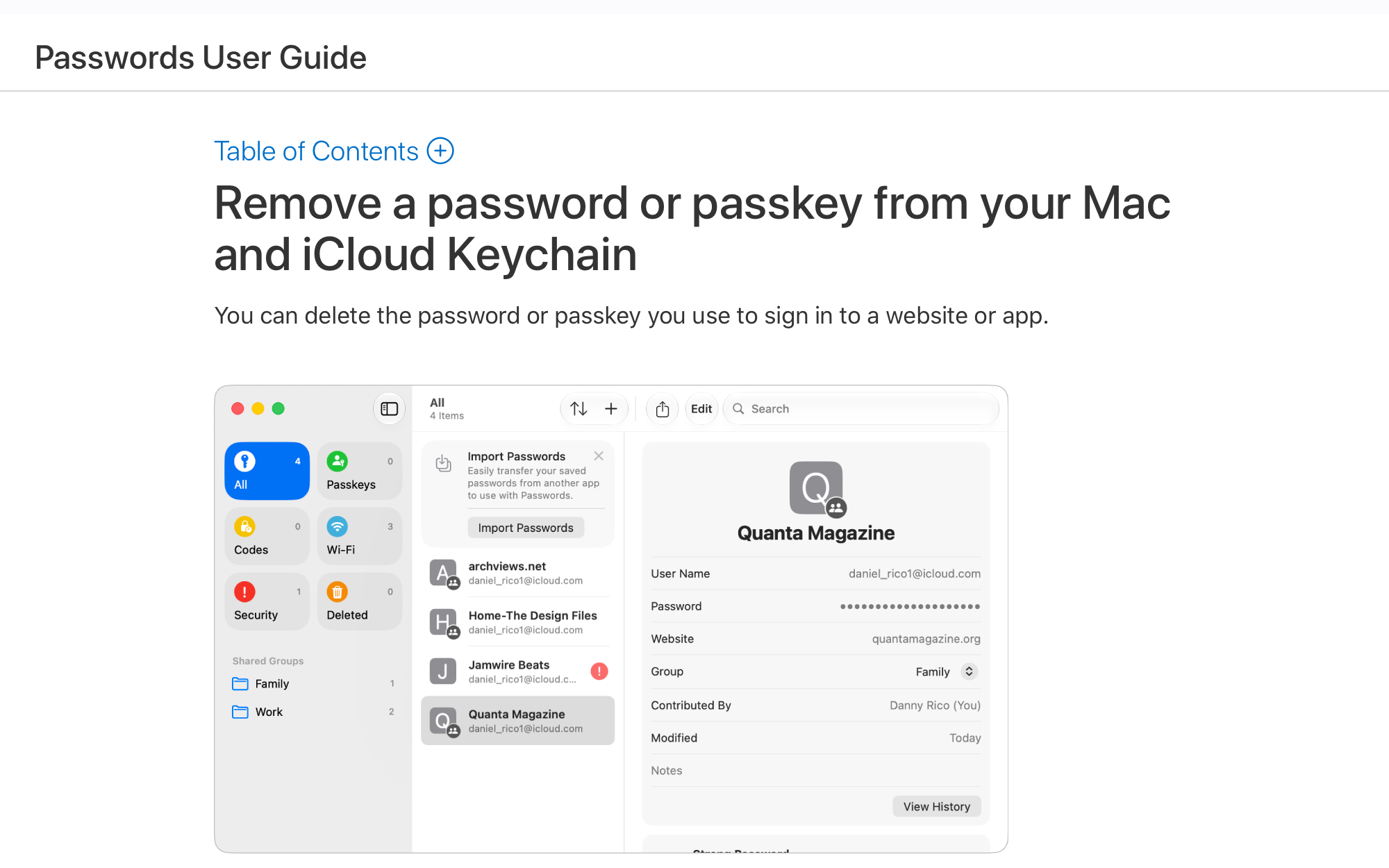
Screenshot: Apple's Passwords User Guide, captured November 25, 2026. The account shown is Apple's published example, not a VaultDog user's account.
The same guide says that removing a saved password or passkey does not remove it from the website or app where it was created, with a stated exception for accounts using Sign in with Apple. Do not treat saved-entry deletion as a general account-deletion procedure. Check the service's own instructions for that goal.
Passwords is also not a complete inventory of every credential-like object an app can store. Apple documents multiple Mac keychain implementations in TN3137: On Mac keychain APIs and implementations. App-specific secrets can require a different inspection path from a website password visible in Passwords.
If vendor support directs you to Keychain Access, identify the exact item and its purpose before acting. Avoid a blanket “reset keychain” or deletion of an entire keychain as an app-uninstall shortcut. Apple says resetting the default keychain deletes its saved passwords and recommends doing it only when advised by Apple Support.
Use this removal-and-access checklist
The following worksheet is our practical contribution: it separates four observations that are often collapsed into “the app is gone.” It is a reader-run procedure, not a claim that we tested your accounts or every Mac app.
| Record | Example of useful evidence | Avoid recording |
|---|---|---|
| Application removal | Exact app name and the vendor procedure used | A guess based only on an icon disappearing |
| Saved credential | Matching service and account entry reviewed | The password, token, or recovery code itself |
| Local sign-in state | Whether the app shows a signed-out screen | An assumption based on deleting its cache |
| Remote access state | The service's confirmation for a named session | An assumption that local deletion revoked access everywhere |
Before removal, decide which rows matter to you. If you only want disk space, deleting a saved password is not a meaningful substitute for finding large files. If you want to stop account access, removing the app bundle is not enough evidence for the session row.
After the chosen action, verify the same row using the relevant control. A removed Passwords entry establishes a change in that password manager. A service's session-revocation confirmation establishes a different change. Preserve those distinctions in any support request.
If reinstalling restores the account
Record what actually returns. A prefilled username, an offered saved password, and an already authenticated account are different outcomes. Do not describe all three as “the password came back.”
Next, check the app vendor's documentation for account reset, sign-out, or credential storage. App data may live outside the application bundle; our Application Support guide explains why deleting a whole folder by name can remove useful data. Shared storage adds another complication, covered in Containers versus Group Containers.
Clearing caches is a separate operation too. The cache and sign-in comparison explains why a cache-only cleanup and deletion of website data have different effects. Neither should be used as a universal credential-removal test.
The useful stopping rule is specific: uninstall to remove software, review a saved entry to change stored credentials, and use account controls to end account access. If the vendor cannot explain an unexpected sign-in after reinstall, keep the observation and ask which mechanism restored it before deleting unrelated data.
Research sources
- Removal scope: Apple's uninstall guide and the Apple DTS persistence discussion.
- Credential controls: Apple's Passwords guide, Mac keychain implementations, and keychain reset guidance.