In this article
Compare the file with the loaded job
If your own LaunchAgent still uses an old argument after you edit its plist, start with two read-only inspections. Check the file you actually changed:
plutil -p "/path/to/job.plist"
Then inspect the job registered in your current graphical login session:
launchctl print "gui/$(id -u)/com.example.job"
Replace the example path and label with your own values. The service name comes from the plist’s Label field, which is not necessarily the filename. The GUI domain is appropriate for the user agent described here; it is not a substitute for a system daemon’s domain.
Compare the relevant program arguments or environment values in the output with the file. If the saved file says one thing and the loaded definition says another, record both before changing anything. A command reporting success does not, by itself, establish which configuration the next process will receive.
If the lookup cannot find the service, first resolve the label and domain. The distinction between a plist, a registered job and a running process matters here: an idle registered job and an absent registration need different treatment.
Restart and reload answer different questions
The local Apple manual, available with man launchctl, describes kickstart as requesting immediate execution. Its -k option kills an existing running instance before restarting it. The same manual describes bootstrap and bootout as adding and removing service definitions.
Apple’s Terminal guide to launchd introduces the native job manager. Its archived configuration guide separates the identifying label, executable arguments and launch conditions.
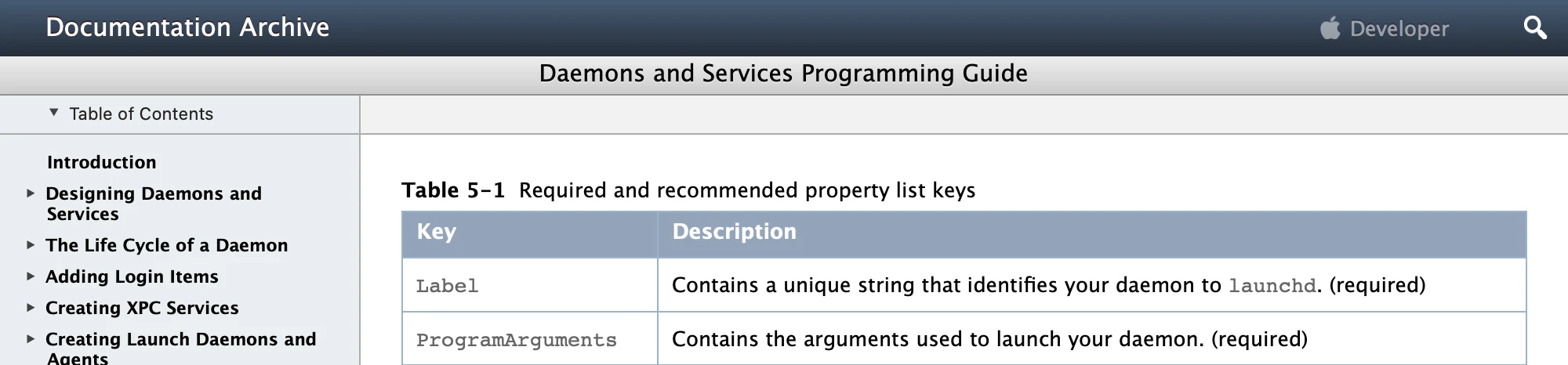
Screenshot: Apple’s launchd configuration guide, captured November 27, 2026. The table identifies the job’s name and program arguments. This is archived documentation; the experiment below checks the behavior on a named macOS release.
A useful inspection record has three columns: the value on disk, the value currently registered, and the result produced by a run. Keeping those observations separate prevents a repeated restart from looking like evidence that the file was reread.
What our three-run experiment produced
On November 27, 2026, we tested a disposable user LaunchAgent on macOS 15.7.5, Apple Silicon. It launched /usr/bin/printf with one marker argument and appended output to a file belonging to the experiment.
The plist stayed outside the normal LaunchAgents folders. It had no schedule; RunAtLoad and KeepAlive were false. We set ThrottleInterval to one second for this repeated test, then explicitly requested each run. This is an experimental setting, not a recommendation for a real helper.
| Stage | Marker saved in the plist | New line produced |
|---|---|---|
| Register the initial file, then kickstart | before-edit | before-edit |
| Save the edited file, then kickstart again | after-edit | before-edit |
| Remove the registration, bootstrap the edited file, then kickstart | after-edit | after-edit |
Both versions passed plutil -lint. The second run still printed the original marker. The third run used the edited marker after the definition was registered again. We then removed our test registration and verified that the service lookup no longer found it.
An initial attempt with the default throttle settings exceeded our command timeout and was unloaded. The table reports the completed, explicitly bounded second attempt. We changed no existing app’s service and did not test every launchd configuration or macOS version.
The result is narrower than “all changes require a reload.” It shows that changing this plist’s ProgramArguments did not change the registered arguments used by the next kickstart.
Reload only a job you control
For a custom user LaunchAgent, first save the original file and validate the intended replacement:
plutil -lint "/path/to/job.plist"
A passing result checks plist syntax. It does not check whether the executable exists, whether its arguments are correct, or whether rerunning the task could duplicate work.
Arrange a suitable stopping point before removing a live registration. For the exact user job you own, the two operations are:
launchctl bootout "gui/$(id -u)/com.example.job"launchctl bootstrap "gui/$(id -u)" "/path/to/job.plist"
Check the result of the first operation before continuing. Keep the full service target on bootout; do not shorten it to the entire domain. If either operation fails, preserve the error and inspect the state instead of repeating a broad command.
Bootstrap can trigger work immediately when a job’s conditions request it. A job with no immediate trigger may remain idle until its normal event or an intentional kickstart. The RunAtLoad and KeepAlive guide explains those separate conditions.
For a vendor-managed helper, use the app’s supported repair or configuration procedure. A vendor or device-management system may own and regenerate the plist.
Check the program’s own configuration separately
A launchd plist can point to a script or an application that reads another configuration file. Editing that external file is a different operation. The program may read it every time, read it only at startup, or support its own reload command. Consult that program’s documentation.
Likewise, correcting spaces and quoting in ProgramArguments solves an argument-format problem. It does not establish that a previously registered job has received the corrected array.
After your intended reload, inspect the loaded values and one meaningful result: the expected output, log entry or completed task. Stop troubleshooting the registration once those match. If the correct arguments are loaded but the task still fails, follow the executable’s error rather than repeatedly restarting launchd jobs.