
In this article
The confusing part is the label. A command described as “clear cache” may open a dialog that also deletes cookies, history, or persistent website storage. Before confirming, read the selected categories rather than relying on the name of the troubleshooting advice.
Start with the browser’s own controls
In Chrome, open More → Delete browsing data. Choose the time range and select Cached images and files. Review the other categories individually; leave cookies, site data, and saved-password categories unchecked if preserving them is your goal. Google’s desktop browsing-data guide distinguishes these categories.
Firefox also offers a narrow selection. Open Settings → Privacy & Security, find the control for clearing browsing data, and select only Temporary cached files and pages. Mozilla’s cache-clearing instructions describe the current dialog and its time-range selector. Category names can change between releases, so check the dialog you actually see.
Do not select every checkbox merely because a guide says to clear everything. If your problem is one stale image or broken page layout, first reload that page and establish whether the fault persists. A broader reset is a separate troubleshooting decision.
Safari’s website-data removal can sign you out
Safari’s Settings → Privacy → Manage Website Data lists stored data by website. Removing an entry is not a promise to delete only cached images. Apple explicitly warns that this action can end website sessions and change how a site behaves.
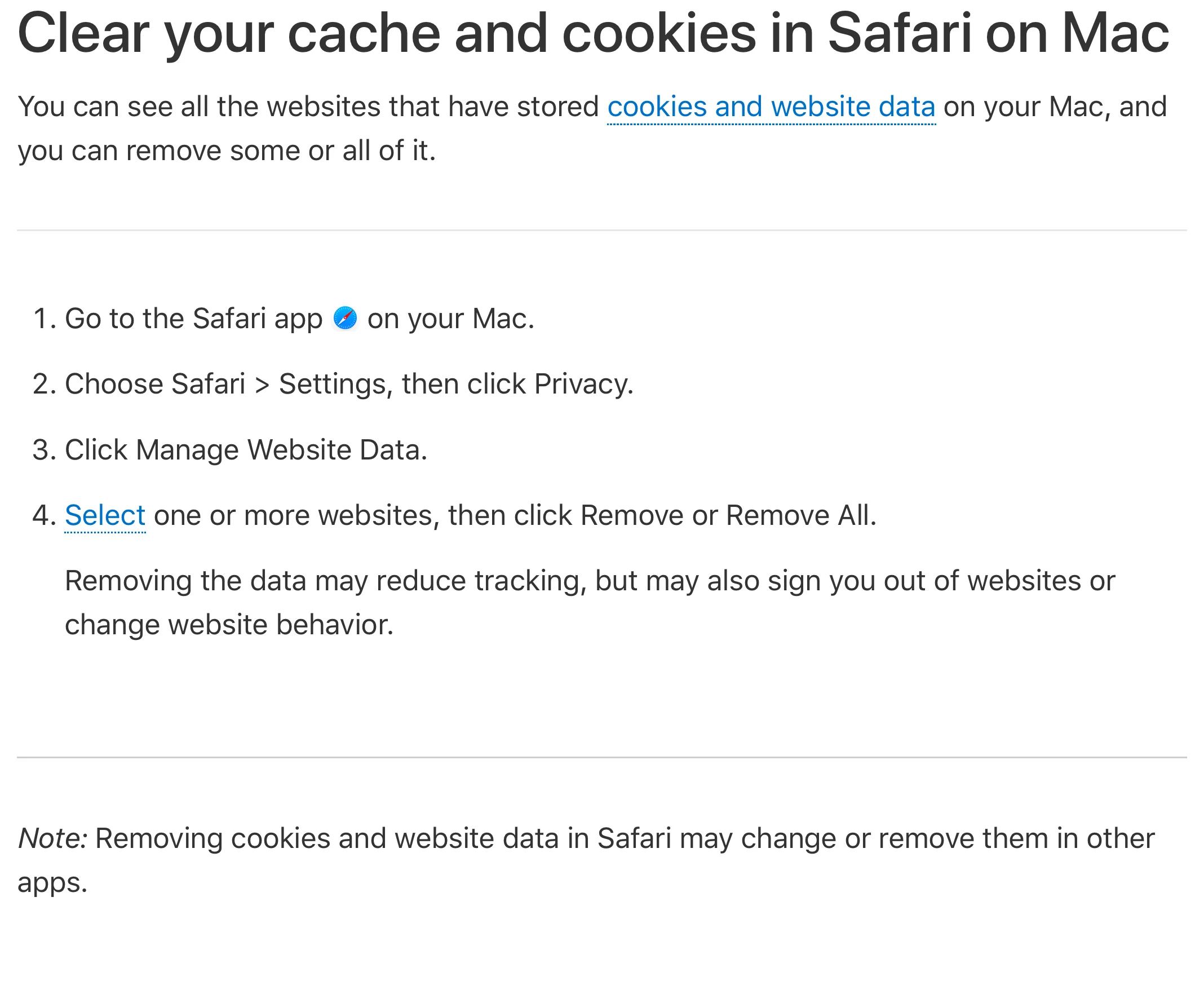
Apple Support’s Safari data-removal guide, captured October 24, 2026. This is a screenshot of the official instructions, not a test of a particular website’s session.
If you intend to reset one troublesome site, selecting that site limits the scope compared with removing every entry. It still may sign you out of that site. Make sure you can sign in again before proceeding, especially if the account depends on a second factor or a particular sign-in provider.
If staying signed in is essential, do not use this website-data removal route as though it were a cache-only button. The distinction matters more than whether a tutorial informally calls the operation “clearing Safari cache.”
Compare the categories before deleting
This table is a decision aid assembled from the browser documentation. It describes the selected operation, not a guarantee about every website or desktop application.
| Selected category or target | What you are changing | Sign-in implication |
|---|---|---|
| Cached page images and files only | Reusable copies of page resources | Usually keeps existing sessions |
| Cookies and website data | Site-specific state and storage | Can sign you out or reset site behavior |
| Saved passwords | Credentials stored for later use | Different from the current session |
| Entire browser profile or app-data folder | Several kinds of persistent state at once | May remove much more than a session |
| A vendor-documented app cache | The specific data named by that app | Check the vendor’s stated consequences |
A saved password and a signed-in session solve different problems. Having a password available can help you log back in; it does not mean the website will continue to recognize the current session after its data is removed. Conversely, a site can ask you to authenticate again for reasons unrelated to cleanup.
The table also explains why “I cleared cache and was logged out” is not enough to identify the cause. Record which categories were selected. Without that detail, cache-only deletion and a broader site reset look like the same event.
A desktop app’s folder may mix cache and account state
For native apps, use the app’s own documented repair or cache control first. A large folder with the app’s name is not automatically disposable.
Apple’s archived filesystem guidance describes caches as regenerable material and distinguishes them from application support data. That is a design convention, not proof that every third-party folder contains only replaceable files.
Electron provides a concrete reason to avoid broad assumptions. Its app path documentation describes session data that can include cookies, local storage, and disk cache, with the session-data location defaulting to the user-data location. Removing the parent folder can therefore cross several boundaries at once.
Our guide to Application Support folders explains why their names and sizes do not establish deletion safety. The distinction between Containers and Group Containers is another reason to inspect ownership and shared use before treating an app folder as cache.
A five-question check before you confirm
Use this short worksheet for the actual app and dialog in front of you:
- What problem am I trying to fix? Write down the stale page, loading error, or named app behavior.
- What exact category is selected? “Cached files” is narrower than “all website data” or “reset application.”
- What do I need to retain? Consider active sessions, offline work, settings, and unsynced content separately.
- Can I recover access? Confirm the account identity and sign-in method before an operation that may remove session data.
- How will I judge the result? Reopen the same page or repeat the same app action, rather than deleting more folders immediately.
For a browser check, change one category at a time and note the selection before confirming. Afterwards, check both the original symptom and whether the intended account is still signed in. This is a reader-run verification plan; we have not simulated your accounts or claimed a successful test on them.
A slower first page load after removing cached resources is consistent with rebuilding those resources. It is not, by itself, evidence that the account has been reset.
When the real goal is disk space
Repeated cache clearing is a poor substitute for identifying what occupies the disk. If storage is the concern, start with System Settings → General → Storage and inspect the relevant category. Our comparison of Finder app size and Storage totals explains why deleting the visible app bundle or its cache may not account for the larger number.
Keep the decision specific: clear a named cache to investigate a named problem, remove website data when you intend a site reset, and treat persistent app data as its own category. If a tool cannot tell you which of those it will remove, you do not yet have enough information to predict the effect on sign-in.


