
In this article
Begin with the app, then inspect one snapshot
Activity Monitor helps you identify the running process and its PID. Apple’s process-information guide explains how to inspect and group processes. An app’s helper can have its own PID, so choose the process associated with the operation you are investigating.
In Terminal, replace 12345 with that PID:
Command: /usr/sbin/lsof -nP -a -p 12345 -iTCP -sTCP:SYN_SENT
The command lists matching TCP sockets visible to your account. It does not alter the firewall, end connections, or send a test request to the remote service.
The -a matters: it combines the PID and network selections with AND. Without it, selection options can produce a broader listing than you intended. -nP keeps addresses and ports numeric; -sTCP:SYN_SENT selects that TCP state. These options are documented in the official lsof manual.
An empty result is a limited observation. The process might have exited, its connection attempt might have completed between snapshots, or the relevant work might belong to another helper. It is not proof that the app never connects. For the broader discovery workflow, see how to check a Mac app’s network connections.
What the state actually tells you
TCP establishes a connection through an exchange between endpoints. The TCP standard, RFC 9293, defines SYN-SENT as waiting during an active open after sending a connection request. Tools commonly display the label with an underscore: SYN_SENT.
This is an opening state. ESTABLISHED is a different state. Closing states such as TIME_WAIT and CLOSE_WAIT answer different questions about a connection that progressed further.
The state does not tell you which router, server, filter, or application condition is responsible. A single line also does not prove successful delivery of your files, identify encrypted content, or establish that the destination is malicious. TCP state is one layer of evidence.
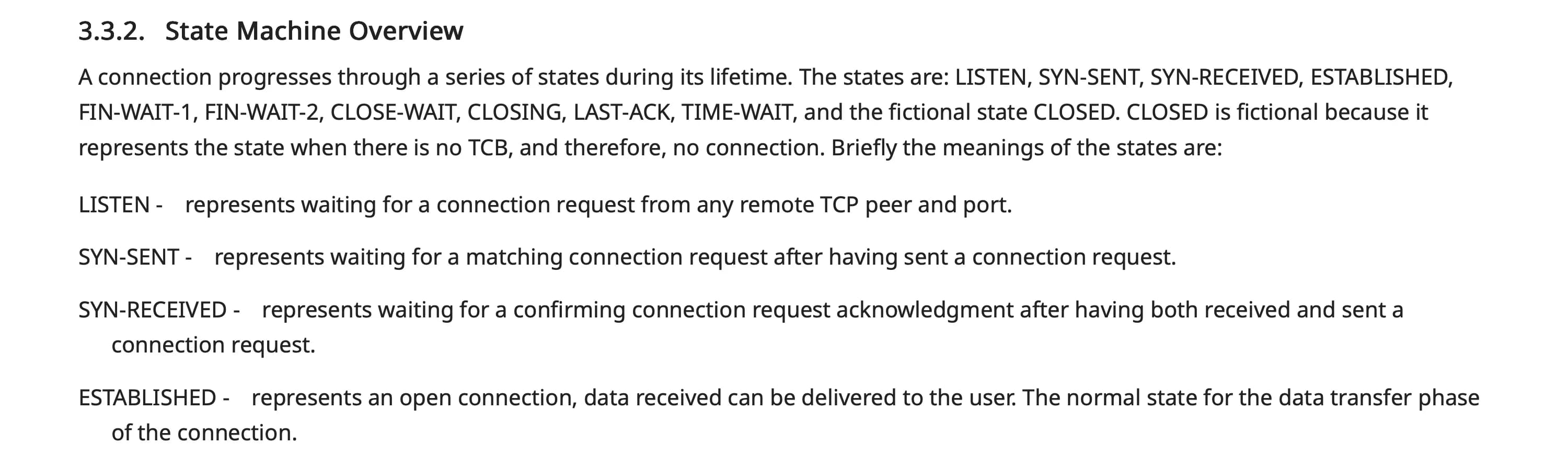
The IETF TCP specification’s state definitions, captured October 25, 2026. This is protocol documentation, not a diagnosis of the Mac used for our experiment. Source: RFC 9293, section 3.3.2.
Our test produced SYN_SENT without an internet destination
On October 25, 2026, we tested a temporary Python process on macOS 15.7.5, build 24G624. It opened a listener on the loopback address 127.0.0.1, requested a listen backlog of one, and deliberately did not call accept().
The same test created eight nonblocking clients connecting to that listener. After half a second, we inspected its sockets with lsof. No application payload was sent in this experiment, and all sockets were closed afterward. No external server or firewall setting was involved.
| Socket role | Observation in this run |
|---|---|
| Local listener on port 52403 | LISTEN |
| First client, local port 52404 | ESTABLISHED |
| Seven remaining clients, ports 52405–52411 | SYN_SENT |
One observed endpoint pair was:
Local endpoint 127.0.0.1:52405 → destination 127.0.0.1:52403, state SYN_SENT.
The address on both sides belonged to the same Mac’s loopback interface. This example demonstrates that SYN_SENT can appear in a local connection setup problem; an internet firewall is not required to produce it.
The experiment does not diagnose your app, establish an exact timeout, or characterize every macOS backlog rule. It also does not establish a universal rule that no payload can ever accompany connection setup. The recorded claim is narrower: these seven test sockets were waiting in SYN_SENT under the stated local conditions.
If it stays there, collect a comparison
Return to the app and repeat the normal action that stalls. Record the time and take another PID-scoped snapshot. Compare the PID, local port, destination address, destination port, and state. A line with a different local port may represent a fresh attempt rather than one connection waiting continuously.
Use the symptom to choose the next check:
| What you observe | Useful next evidence |
|---|---|
| A brief SYN_SENT entry, then the task succeeds | Check whether the state transitions during normal completion |
| One app repeatedly stalls at the same destination | Record its error and consult that service’s status or support information |
| Several unrelated apps cannot reach services | Check the Mac’s connection and ordinary network diagnostics |
| The destination is 127.0.0.1 or ::1 | Identify the local service the app expects to contact |
These are investigation paths, not diagnoses made by the state label. A failed attempt may reflect a service or network condition, but naming the cause requires additional evidence. Do not change several settings at once: you would lose the ability to tell which change affected the result.
What to send to support
A useful report includes the app version, macOS version, selected PID, timestamp, operation attempted, and a few matching socket rows. Say whether the row was observed once or repeatedly. Include the app’s own error message rather than replacing it with a guessed firewall explanation.
Before posting publicly, remove private hostnames, account information, and unrelated connections. Numeric addresses can still identify internal infrastructure, so share only what the recipient needs.
Keep your conclusion proportionate to the observation: “This process had these TCP sockets in SYN_SENT while the operation stalled.” That gives support a specific starting point without treating one network label as proof of a security problem or successful data transfer.


