
In this article
Replace the quoted example path with the file you actually want to inspect. You do not need a new editor or an online converter just to see a normal binary property list. Keep the original file intact while you work out what it contains.
Start with a read, not a conversion
Open Terminal from Applications → Utilities. Type plutil -p , including the trailing space, then drag the file from Finder into the Terminal window to insert its path. Press Return. Alternatively, type the full path inside quotes as shown above.
The result is a readable hierarchy of keys, values, arrays and dictionaries. A true/false value is different from a string containing those words, and an array is different from a single item. Preserve those distinctions when reporting a finding.
The installed man plutil manual describes -p as a human-readable display. It also warns that this output is not a stable format for machine parsing. Reading the output yourself is its intended use; a script should use a supported extraction or serialization format instead of depending on the spacing you happen to see.
If the command reports a missing file, check the path first. A filename containing spaces must remain one argument. A permission error is a separate problem from an unreadable encoding; neither result establishes that the plist is corrupt.
Binary and XML can represent the same values
Apple's archived Property List Programming Guide describes property lists as structured data and identifies both XML and binary representations. Binary is not an encryption label, an executable program, or a diagnosis of damage.
A text editor expects text. When it opens binary data, unusual symbols are unsurprising. You may see a recognizable bplist00 header, but seeing that header alone does not validate the rest of the file.
Use file "/path/to/file.plist" for an initial format identification, then plutil -lint "/path/to/file.plist" for a syntax check. The two tools answer different questions.
| Result | What it tells you | What it does not establish |
|---|---|---|
file reports an Apple binary property list | The file resembles that format | Every object is valid |
plutil -lint reports OK | The parser accepts the plist syntax | The app accepts every key and value |
plutil -p displays values | Those values were read from this file | The running app currently uses those values |
| A text editor shows unusual characters | The bytes are not ordinary readable text in that view | The file should be deleted |
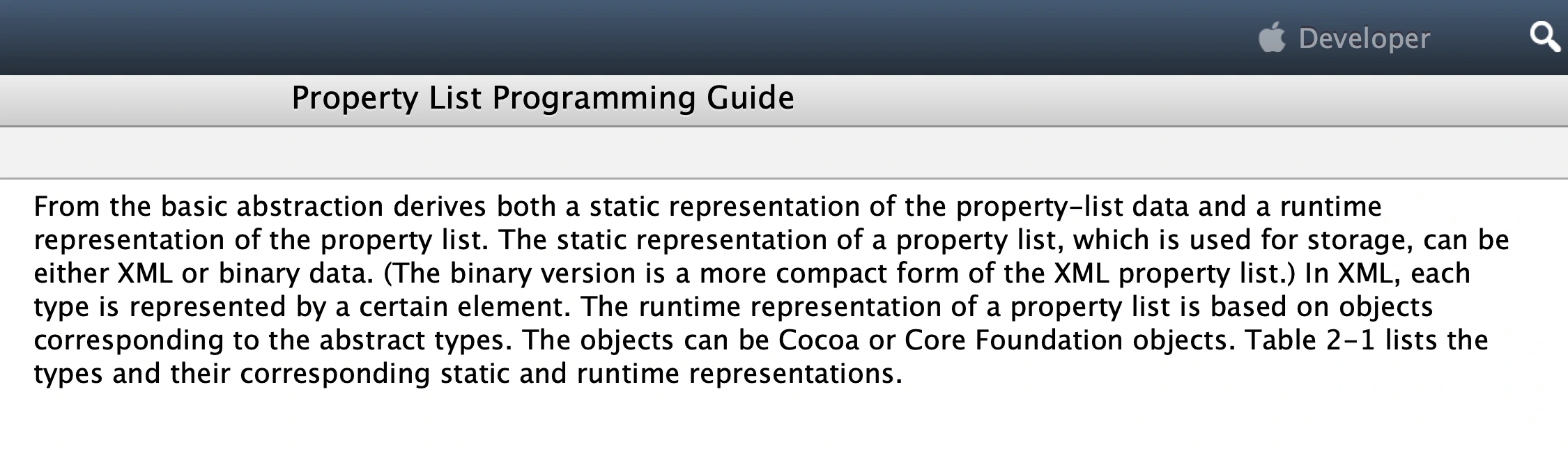
Screenshot: Apple’s archived property-list guide, captured November 20, 2026. The storage representation is distinct from the values it represents.
The .plist suffix is another clue, not a guarantee. A renamed text file does not become a valid property list. Conversely, property-list data can appear under other extensions; a filename extension and a file's actual format are separate evidence.
Our test: readable output, identical source bytes
On macOS 15.7.5, November 20, 2026, we created a disposable binary plist with four keys: a sample label, a Boolean, an integer and an array of two strings. The file belonged only to this experiment; no installed app's settings were changed.
We recorded its SHA-256 before inspection and again after each operation. The complete source digest remained 7fc63ecd84577ed7f2c46034a463c7fbeb022685759e6a60f23ad74d7385c4c8.
| Operation on our fixture | Observed result | Original byte digest |
|---|---|---|
file | Apple binary property list | Unchanged |
plutil -lint | OK | Unchanged |
plutil -p | All four keys displayed readably | Unchanged |
plutil -convert xml1 -o - | XML printed to standard output | Unchanged |
| Conversion with a separate output path | A readable XML copy was written | Unchanged |
We also parsed the binary original and XML copy independently and compared their values: they matched. This demonstrates these operations on the tested fixture, not that every file with a plist extension can be repaired or converted successfully. The test checked source bytes; it was not an audit of every filesystem timestamp.
Print XML without overwriting the source
When you specifically need XML, run:
plutil -convert xml1 -o - "/path/to/file.plist"
Here, -o - sends the result to standard output. The final argument is the source file. Do not confuse the output dash with the source path.
For a separate file, use:
plutil -convert xml1 -o "/path/to/new-readable-copy.plist" "/path/to/original.plist"
Choose a new output name that is not an existing file you need to keep. The installed manual documents the alternate output path, and Apple's older property-list administration guide provides background on conversion and property-list tools. The commands above were checked on the current test Mac.
Without an alternate output, conversion writes back to the named file. That is an unnecessary mutation when your job is only to inspect. Do not save a text editor's garbled rendering over the original, either.
A valid plist is not a valid app setting
A syntactically valid file can still contain an unsupported key, an inappropriate value type, or data for a different app version. If -lint fails, retain the exact error and confirm that you selected the intended file. Do not turn one parser error into a blanket instruction to delete preferences.
A plist can describe preferences, an app bundle or a background job. A LaunchAgent file's presence does not prove its job is running. Likewise, a preference file is not necessarily a live view of everything an app currently knows.
For a settings problem, start with the app's own settings and the developer's reset instructions. Our guide to a deleted preference plist returning explains why file recreation and restored values are different observations.
Keep a short inspection record: the file path, command, result, and the app behavior you were trying to explain. Review values before sharing output because configuration files can contain private details. The useful next step follows from the actual result—readable values, a path problem, a permission problem, or a specific parsing error.


