
In this article
If you are trying to fix one preference, the useful result is that the preference behaves correctly. Keeping a filename permanently absent is a different goal. An app that still uses that file may legitimately create it again on its next launch or settings change.
Start inside the app
Open the app’s Settings or Preferences and look for a reset option for the specific feature. Check the developer’s current support instructions before choosing a whole-app reset. A reset button for the editor, for example, may leave account settings alone; a full reset may not.
Write down one observable symptom: “The selected font changes back after quitting,” or “The old server address returns after sign-in.” Then change that setting through the app, quit normally, reopen it, and check the same field. This gives you a repeatable test instead of a growing pile of deleted files.
If the developer instructs you to move a preference file, quit the app first and keep a restorable copy. Do not extend instructions for one named file to every plist in your Library. Apps may save settings while running or when they quit, so changing files underneath them makes the result harder to interpret.
A preference is more than its file
Apple’s current UserDefaults documentation explains that a write updates the in-memory representation immediately and writes to disk asynchronously. A file view and an app’s current state therefore need not describe exactly the same moment.
Apple also tells developers to use the preferences APIs rather than directly creating files in the Library/Preferences directory. That is why deleting a file is not a universal settings-reset protocol.
There is another distinction: the app can have fallback defaults. Apple’s user defaults system guide describes a search through preference domains, including a registration domain containing fallback values. A visible setting can consequently have a value even when you have not saved a customized value for it.
These mechanisms suggest several possible explanations, not one guaranteed diagnosis. An app may create a fresh preference file; a running component may save a value again; or the setting you removed may belong to a different domain from the one the app reads. If settings return specifically after sign-in, investigate the app’s documented account-sync behavior too.
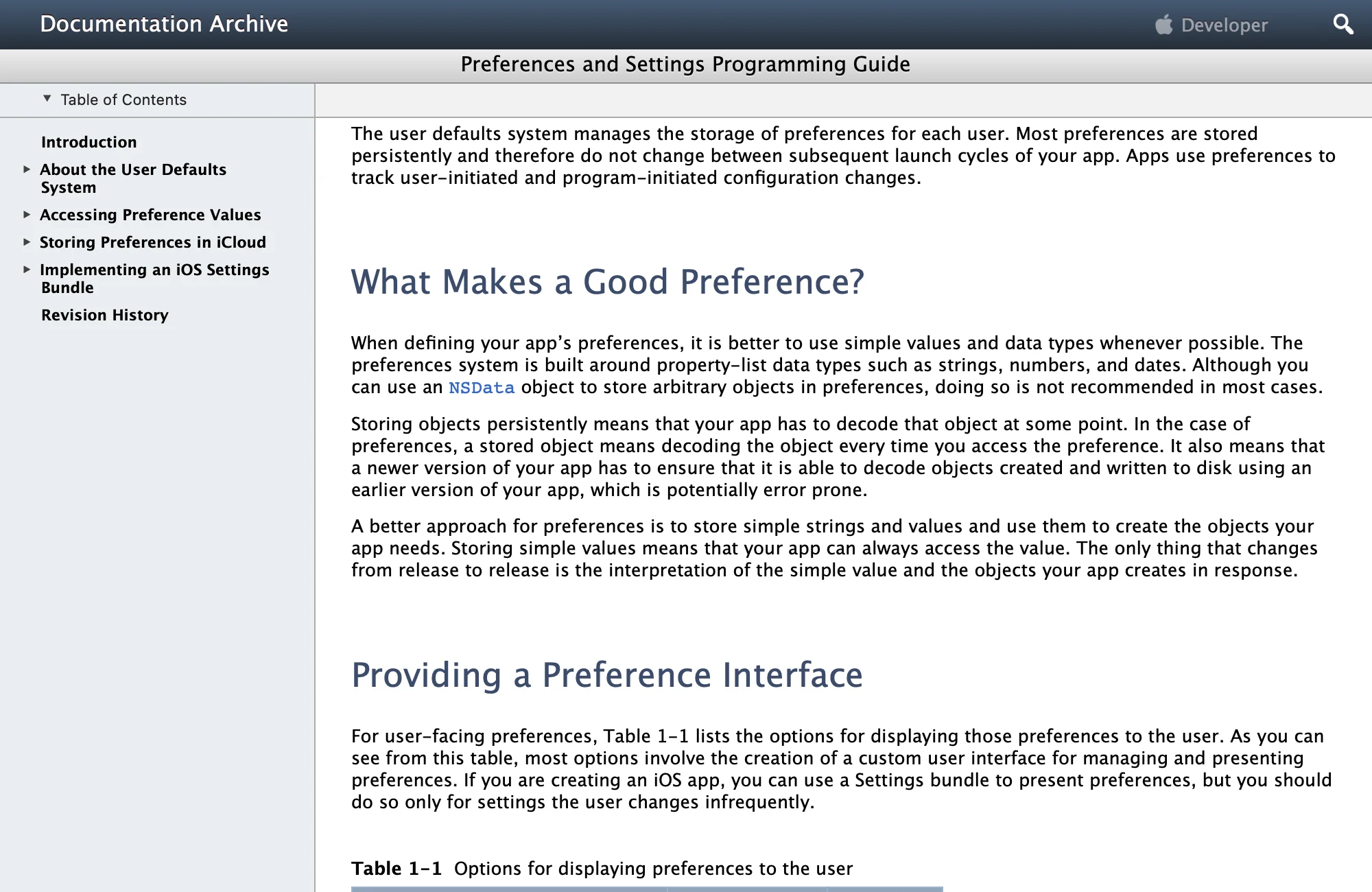
Apple’s documentation distinguishes stored preferences from the app interface that uses them. Source: Apple Documentation Archive, captured October 19, 2026; the archived guide was updated in 2013.
Our test: the file returned, the old value did not
On October 19, 2026, we tested a disposable preference domain on macOS 15.7.5. It had a unique dev.vaultdog.editorial identifier and belonged only to this experiment. We did not reset an installed app or restart the preferences service.
| Step | Observation | What it establishes |
|---|---|---|
Write a test key named Sample with value amber using defaults | Reading Sample returned amber | The test value existed |
| Copy the test plist for evidence, then remove that test file | Reading Sample reported that the domain/default pair did not exist | The old value was absent from this read |
Write a different key, OtherSample, with value blue | The plist existed again; the domain contained only OtherSample = blue | File recreation did not restore the old key |
Delete our disposable test domain through defaults | Cleanup completed successfully | No test preferences were intentionally retained |
This is a deliberately small experiment, not a promise about every app or macOS release. It did not reproduce persistent cached values. It does demonstrate why “the plist came back” alone is insufficient evidence that a reset failed. Look at the relevant value and the app’s behavior as well as the filename.
Confirm which plist you are examining
First distinguish a preference file from other property lists. A .plist extension describes a file format; it does not mean that every such file stores app preferences. A LaunchAgent plist, for example, describes a job and raises a different troubleshooting question.
For app preferences, identify the app’s bundle identifier. The identifier is a better starting point than a loose filename search for the app’s marketing name. Even then, check the developer’s instructions: sandboxed apps and shared settings can involve different locations or suites. Our Containers and Group Containers guide explains why an app’s data is not necessarily confined to one obvious folder.
For a domain you have positively identified, a read-only inspection can help:
defaults read com.example.app
com.example.app is a placeholder, not a command to reset any real application. Replace it only with the domain you intend to inspect. Read output locally: preference values can contain account names, server addresses or other private information. A “does not exist” response is not proof that the app has no settings anywhere else.
Use a small before-and-after checklist
Before another reset attempt, record these four things:
- The behavior: which exact setting fails, and whether it changes after launch, quit or sign-in.
- The target: the app version, preference domain and full path you actually inspected.
- The state: whether the app and its relevant helper were running when the file changed.
- The result: whether the old value returned, a new default appeared, or only the file was recreated.
If only a fresh file returned and the setting now works, there may be nothing left to fix. If the old value returns at a repeatable point, share that sequence with the developer and follow the app-specific reset procedure. Do not treat killing every cfprefsd process or deleting the whole Preferences directory as a routine next step.
VaultDog can help with the identification stage by showing discovered files associated with an installed app when matching evidence exists. That association is context for your investigation; it does not establish which preference value is currently active or whether deleting a file will fix the problem.


