
In this article
Start with the process you actually mean
Search for the app or helper in Activity Monitor, select it, and note its process ID, or PID. Switch to the hierarchical view to see its current relationship to other processes. Apple documents this view in its Activity Monitor process guide.
An app name can appear more than once. A browser, updater, and renderer are different running processes even when they belong to the same application. Match the PID before comparing two observations; our guide to multiple processes for one Mac app explains that separate question.
The hierarchy is useful context. It is not a recording of every launch event since your Mac started. If your real question is “why did this app open at login?”, keep that question separate from “who is its parent right now?”
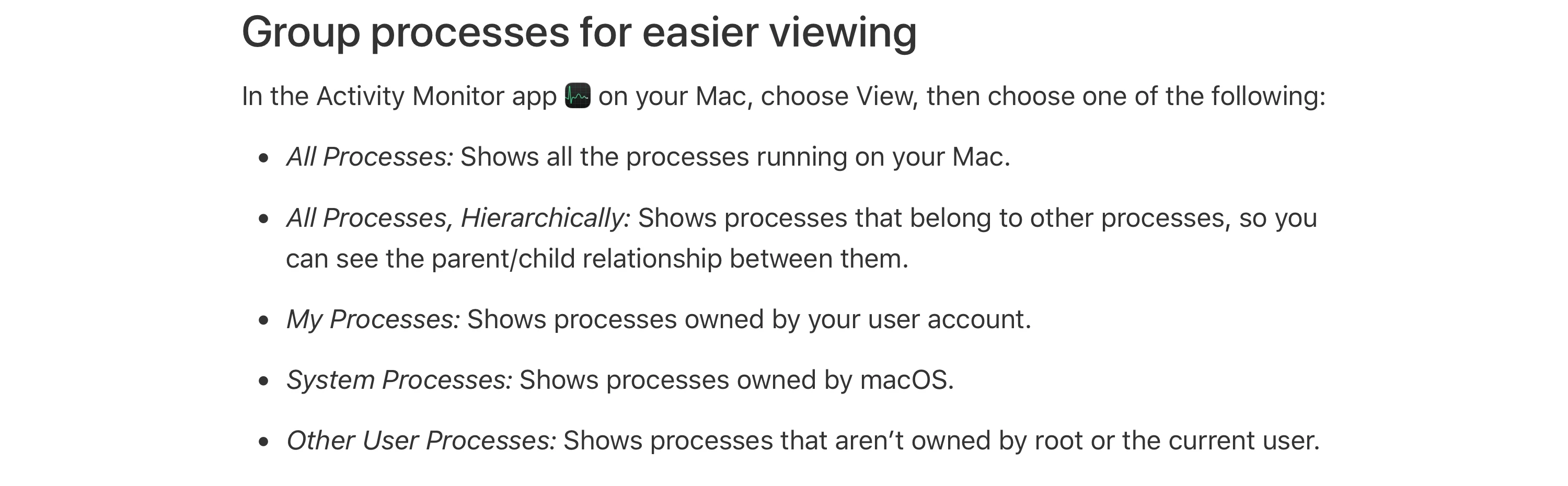
Apple’s process-grouping guide, captured October 25, 2026. The hierarchical option exposes parent/child relationships; it does not label an app as a login item. Source: Apple Support.
Read PID, PPID, and user separately
For a compact snapshot, open Terminal and replace 12345 with the PID you just selected:
Command: ps -p 12345 -o pid=,ppid=,user=,comm=
This command reads process information. It does not stop a process or change startup settings. The fields mean:
| Field | What it answers |
|---|---|
| PID | Which running process is this? |
| PPID | What is its current parent process ID? |
| USER | Which user account owns the process? |
| COMM | What executable name or path does this snapshot report? |
Check your Mac’s man ps for the local command reference. No output may simply mean the selected process has already exited. A relaunched app receives a new PID, so return to Activity Monitor rather than assuming an earlier number still identifies it.
A PPID of 1 and a USER value of root answer different questions. Do not infer the child’s privileges from the parent’s name. Nor does the executable label alone establish who published the software or whether you intended to install it.
We watched a process change parents
On October 25, 2026, we ran a small controlled test on macOS 15.7.5, build 24G624. A temporary Python parent created a child. The child recorded its own PID and parent PID, stayed alive while the parent exited normally, and recorded both values again.
We created no LaunchAgent, LaunchDaemon, or login-item registration. The test processes then exited normally.
| Observation | Child PID | Parent PID |
|---|---|---|
| Before the direct parent exited | 56726 | 56725 |
| After the direct parent exited | 56726 | 1 |
The child PID stayed the same. Its parent ID changed to 1. In this test, the later relationship resulted from the original parent’s departure, without adding an instruction to start that child at login.
That is a concrete reason not to use PPID 1 as a startup detector. It does not prove that every process you find under launchd followed the same path. It also does not reconstruct a lost parent from a later snapshot. Our test measured one process transition on one macOS version, not every graphical-app launch mechanism.
launchd also starts legitimate services
Reparenting is only one explanation. Apple’s Terminal guide to launchd describes its role in managing daemons and agents. A process may therefore be running under launchd because it really is a managed service.
Even then, “managed by launchd” is not a precise synonym for “opened when I logged in.” Apple’s archived daemon and agent guide describes jobs launched on demand as well as other scheduling arrangements. That archive provides architectural background; it is not a current System Settings walkthrough.
The useful next question is what configuration or action caused this particular process to run. A parent label is one observation toward that investigation, not its conclusion.
Match the next check to your question
If the app appears when you sign in, review its own startup preference and macOS Login Items settings. Compare Open at Login with Allow in the Background before changing a switch: those controls describe different behavior.
If you have already found a matching launch configuration, identify its label and executable before drawing conclusions about the running process. A file’s presence and a currently loaded job are different observations; see why a LaunchAgent plist may not be running.
If the concern is CPU or memory use, the resource readings of the selected process are more directly relevant than its parent ID. Record the symptom, app action, and time together. “This helper used CPU while exporting a file” is a more useful report than “launchd is its parent.”
If the process is unfamiliar, establish its executable and associated application before removing anything. Do not quit launchd or delete launch configuration files merely to make the hierarchy look different. That would change the system before you had answered the original question.
Keep a small evidence record
For an app-support request, save the selected process name, PID, PPID, user, observation time, and the action that reproduced the issue. Record whether the application was already open or had just relaunched. Redact account names and personal file paths before sharing output publicly.
These details let someone compare like with like. A later PID or parent change may describe a different process lifetime. The practical result is a bounded statement: “At this time, this process had parent PID 1.” Whether it starts at login needs its own evidence.


