
In this article
This is a read-only identification step. You do not need to disconnect Wi-Fi, change network priority, or enter an administrator password to run the listing on a normally configured personal Mac.
Match Wi-Fi to its device name
Open Terminal from Applications → Utilities and run the built-in tool:
/usr/sbin/networksetup -listallhardwareports
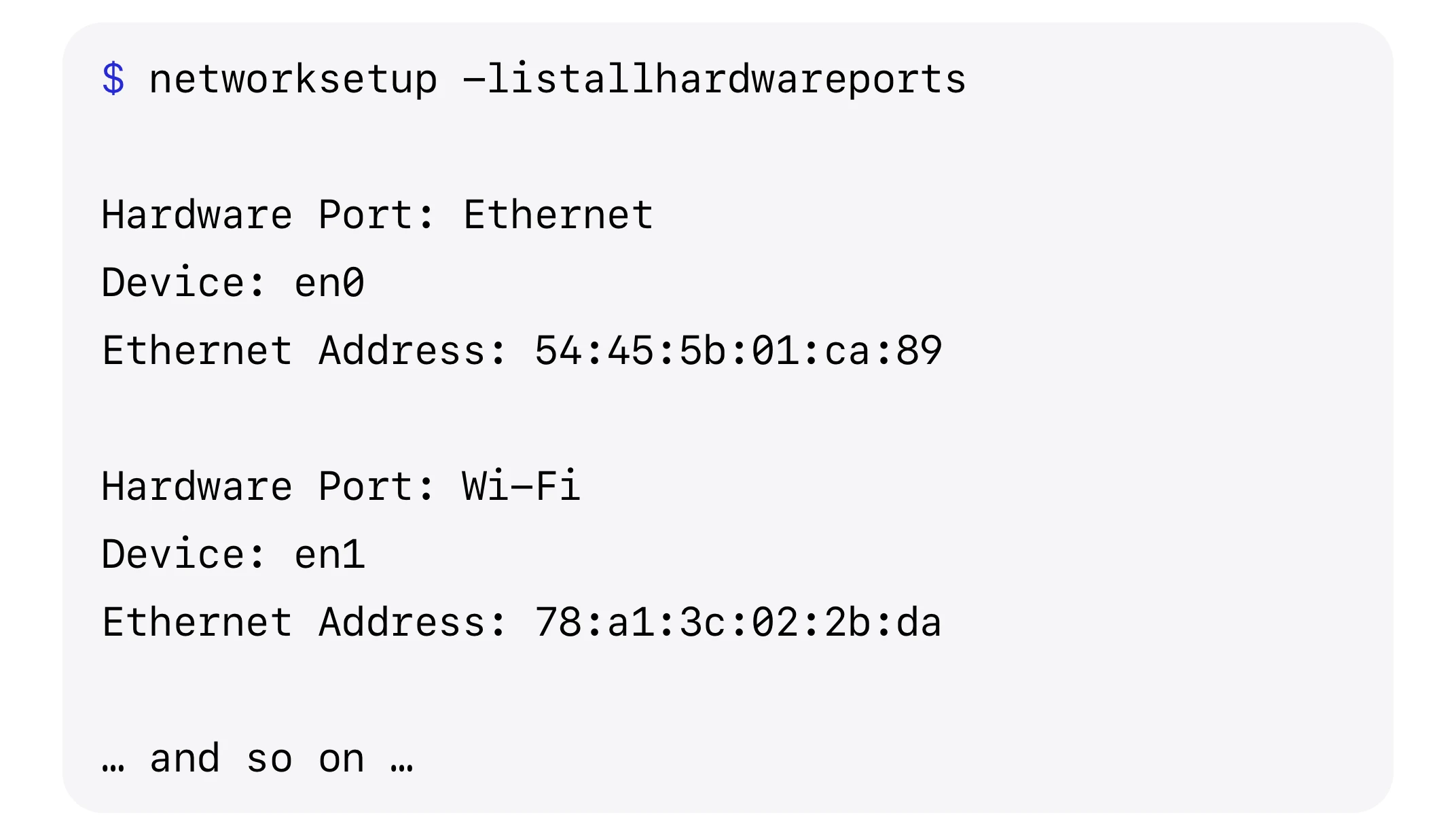
Look through the output for the Wi-Fi hardware port. The nearby Device line supplies the short interface name. On the Mac used for our check, the relevant pair was:
Hardware Port: Wi-Fi
Device: en0
Your result may differ. Copy the name from your own output rather than copying en0 from this article. The command also prints hardware addresses; you do not need to copy or share those to identify the interface.
Apple’s packet-trace guide recommends this mapping step before selecting an interface. Its example maps Ethernet to en0 and Wi-Fi to en1, illustrating why a hard-coded assumption can send a diagnostic command to the wrong place.
Screenshot: Apple’s packet-trace guide, captured October 28, 2026. Interface selection comes before a useful network observation.
Keep four different names separate
The same network setup can contain several identifiers. They answer different questions:
| Identifier | Example | What it identifies |
|---|---|---|
| Hardware port label | Wi-Fi | The kind of connection being described |
| Device or interface name | en0 | The short name used by interface-based tools |
| Network service name | Wi-Fi, or a renamed service | A configured service used by some networksetup options |
| Address | An IP address or hardware address | An address associated with networking, not the interface’s short name |
A wireless network’s name, or SSID, is another separate identifier. It is the network you join, not a replacement for the Device value in a command that requires an interface.
Apple’s networksetup overview explains the tool and its built-in help. Read an option’s argument carefully: some ask for a network service, while others ask for a device. Passing Wi-Fi where an interface is required is not equivalent to passing the mapped en name.
Changing a private Wi-Fi address is a different operation again. The short interface name should not be interpreted as a router identity, a privacy setting, or a list of nearby devices.
Our check: two native listings agreed
We compared two read-only listings on macOS 15.7.5, on October 28, 2026:
/usr/sbin/networksetup -listallhardwareports
/usr/sbin/networksetup -listnetworkserviceorder
The second command includes each configured service’s hardware port and device. We retained only the port/device fields for this comparison, leaving out addresses and unrelated service details.
| Item checked | Hardware-port listing | Service-order listing |
|---|---|---|
| Wi-Fi | en0 | en0 |
| Thunderbolt Bridge | bridge0 | bridge0 |
The hardware-port listing also associated Thunderbolt 1 with en1. On this particular Mac, selecting en1 because a tutorial called it Wi-Fi would therefore select a different interface.
These are observations from one Mac, not a promise about numbering on other models. The comparison establishes that the Wi-Fi mapping was consistent across the two native views at the time of the check. It does not establish which path every app’s traffic used, especially when multiple connections or a VPN are involved.
No interface was switched off, no route was changed, and no packet capture was started for this test. Identifying the name is enough for the question this guide answers.
Choose the next check for your actual question
Once you have the Device name, use it only in commands that expect that kind of argument. For example, the following asks whether the Wi-Fi radio is powered on; replace en0 if your mapping showed another name:
/usr/sbin/networksetup -getairportpower en0
An On result is about radio power. It is not proof that the Mac has joined your intended network, has an IP address, or can reach a particular website.
For a separate IPv4-address check, a diagnostic command may use:
/usr/sbin/ipconfig getifaddr en0
Again, substitute your mapped device. A blank result does not identify the reason by itself: check that you selected the right interface and whether it has an IPv4 address. This command is not a complete IPv6 or internet-connectivity test. The local manuals, man networksetup and man ipconfig, describe the commands available on your installed system.
If your output contains a scoped IPv6 address such as one ending in %en0, that suffix relates the address to an interface. Our link-local IPv6 guide explains that notation separately.
If your real question is which app is contacting a remote destination, an interface listing does not answer it. Continue with the per-process network connection workflow, keeping the process and observation time clear.
If the expected Wi-Fi entry is missing
First check the whole listing rather than assuming the first en entry is wireless. A Mac can have several Ethernet-like interface names, and the numeric suffix alone does not establish the hardware role.
Compare with System Settings → Network and inspect the available services. The -listnetworkserviceorder output can help relate a configured service to its port and device, especially if a service has been renamed. A missing expected service is a reason to investigate the configuration, not to guess another interface number or delete network settings.
When sending a diagnostic question to support, include the command you ran, the relevant Hardware Port and Device lines, your macOS version, and what you wanted to measure. Remove network names, addresses, and unrelated services if they are not needed.
The useful result is the verified pair on your Mac: Wi-Fi → Device name. Keep that pair beside the diagnostic command you intend to run so that a correct command does not become an observation of the wrong interface.


