
In this article
Identify the file before cleaning anything
Start with the exact name and location. .DS_Store is one filename, including its leading period. It is not a second copy of the document beside it, and it is not the same as a name such as ._Report.pdf.
In Finder, open the folder you are investigating. Command–Shift–Period toggles hidden items so you can inspect them; use the shortcut again when finished. Check that you are in the intended folder before selecting anything. For a file someone sent you, preserve the original delivery while you investigate a separate copy.
The Library of Congress format description identifies .DS_Store as a binary Finder metadata format. It records information about directory presentation, including icon positions and view options. Opening it in a text editor is therefore not a useful way to read the documents in that folder.
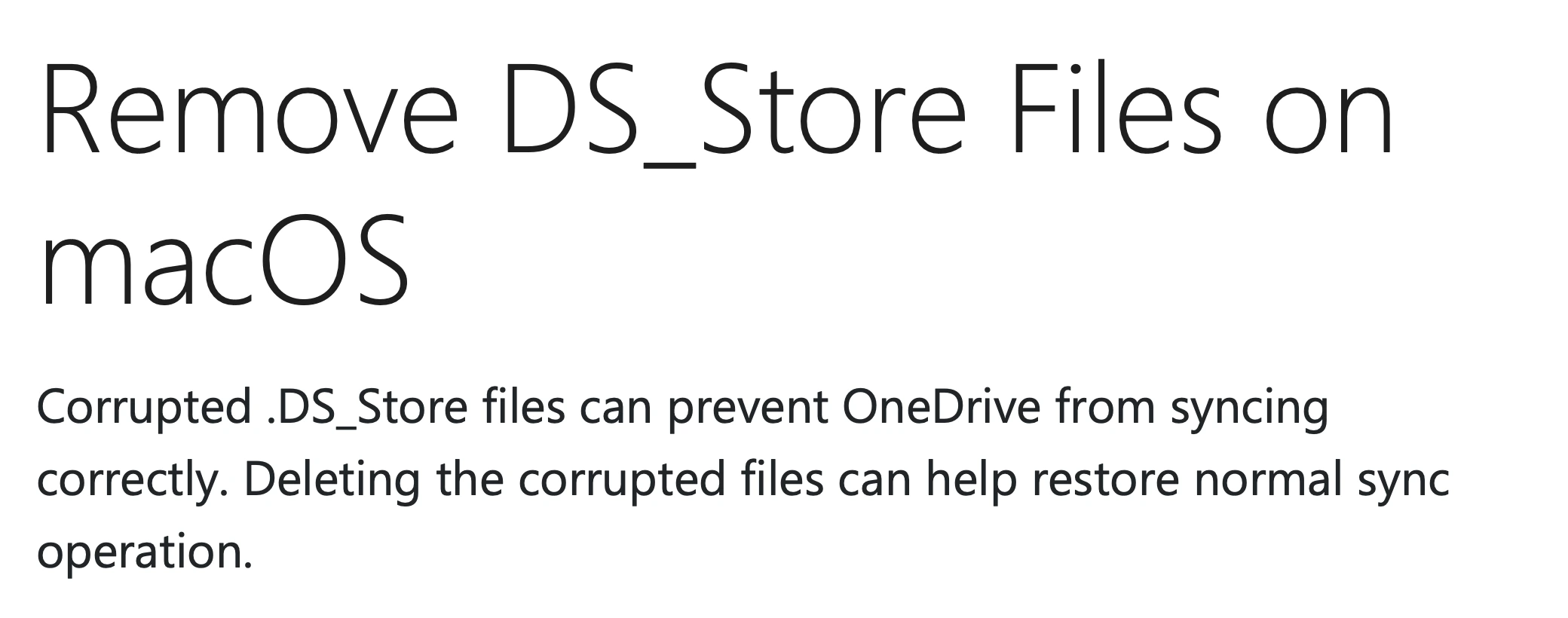
Microsoft’s OneDrive support article, captured November 2, 2026. Source. Its troubleshooting advice concerns corrupted files and a sync problem, rather than routine disk cleanup.
Folder settings are different from file contents
Think of a working folder and its presentation as two separate things. Your report contains the report. Finder’s folder metadata helps remember how a folder is presented. Losing the latter can lose customization without making the former a duplicate or a disposable file.
The distinction matters when several unfamiliar names appear together:
| Item you see | Scope | Next useful check |
|---|---|---|
.DS_Store | Finder metadata associated with a folder | Identify the folder and why you are inspecting it |
._Report.pdf | An AppleDouble companion associated with a file | Check the transfer format and preservation needs |
Report.pdf | The document itself | Open or verify the document normally |
@ after permissions in ls -l | A marker for extended attributes | Inspect attributes rather than guessing from the symbol |
Our guide to dot-underscore files on Mac covers the AppleDouble case. For the permissions-column marker, see what @ and + mean in Mac file listings. A command that matches every dot-prefixed name ignores these differences.
Do not assume that every folder you inspect must immediately contain .DS_Store. In our November 2 check on macOS 15.7.5, we created two test documents, opened their folder in Finder, changed from icon to list view, and closed that window. The immediate checks found no .DS_Store; both document hashes stayed unchanged. That limited observation does not establish a prevention method or a rule for other folders.
Decide by the folder’s destination
The useful question is what you are trying to accomplish. Finding a hidden file is not, by itself, a reason to change the folder.
| Situation | Sensible starting action | What to verify afterward |
|---|---|---|
| Your normal working folder | Leave Finder metadata in place | No action needed solely because the file exists |
| A clean copy prepared for delivery | Inspect the copy and its required contents | The intended documents still open and the final delivery contains what you expect |
| A specific folder failing to sync | Follow that sync provider’s diagnosis | The same folder completes synchronization |
| Slow browsing of a managed SMB share | Review Apple’s bounded SMB guidance with the administrator | Browsing behavior in that share, not unrelated local folders |
| An unfamiliar file with a similar name | Establish identity before removal | Exact name, location, and relevant file type |
This worksheet deliberately separates a packaging decision from a repair. A delivery can be tidy without proving a sync fault, and a sync fault needs an observed symptom before you call it fixed.
Inspect one folder without a recursive delete
For a read-only check in Terminal, type cd followed by a space, drag the intended folder into the window, and press Return. Then run:
pwd
ls -la .DS_Store
pwd confirms the directory. The second command targets only that exact filename; it lists information rather than deleting anything. A “No such file” result simply means the named entry was not found there at that time. It does not establish what is inside every subfolder or archive.
For a delivery, work on a separate copy and inspect the final archive or upload listing as well. Reopening the working folder later can change its metadata, so checking one intermediate folder is not the same as checking the final package.
If you choose to remove the exact file from a disposable delivery copy, do so in that copy after confirming the name. Keep the original working folder available. Avoid a whole-disk search-and-delete command for a task that concerns one handoff. For a broader comparison, record files before and after a change instead of relying on memory.
Two troubleshooting cases with narrow scope
OneDrive: Microsoft documents corrupted .DS_Store files as a possible cause of sync failure and describes removal as a repair for that situation. The starting evidence should be a folder that fails to sync. Record the failure, follow the applicable support instructions, and check whether that same folder now syncs. The presence of an ordinary .DS_Store file does not diagnose corruption. Microsoft’s troubleshooting article supplies the relevant context.
SMB shares: Apple’s SMB browsing guidance describes a setting that prevents reading .DS_Store information on SMB shares, leaving Finder with basic information and alphanumeric ordering. Apple also says the default behavior suits most users. That is a specific network-browsing adjustment, not a universal switch for eliminating local files or cleaning USB drives.
Keep a small record of the decision
Before changing a folder, record its path, the exact filename, and the reason: delivery, sync repair, or a documented share-browsing issue. Afterward, verify the intended outcome and the documents that matter.
For an ordinary working folder with no symptom, that record can simply say leave it in place. For a handoff, the useful result is a verified delivery. For troubleshooting, it is a reproducible improvement in the specific operation that was failing.


