
In this article
Start with the ordinary document
If a folder contains report.pdf and ._report.pdf, choose report.pdf in Finder or the receiving application. Do not rename the small companion to replace the document. If you received only the companion, ask the sender for the original document or a fresh archive.
A tiny file that refuses to open as a photo or PDF is not necessarily a damaged copy of that photo or PDF. It may be a different kind of file altogether. The filename is a clue, not a security verdict about either item.
The Library of Congress format description identifies these companions as AppleDouble files carrying information associated with another file. They can appear alongside documents or inside archive folders such as __MACOSX.
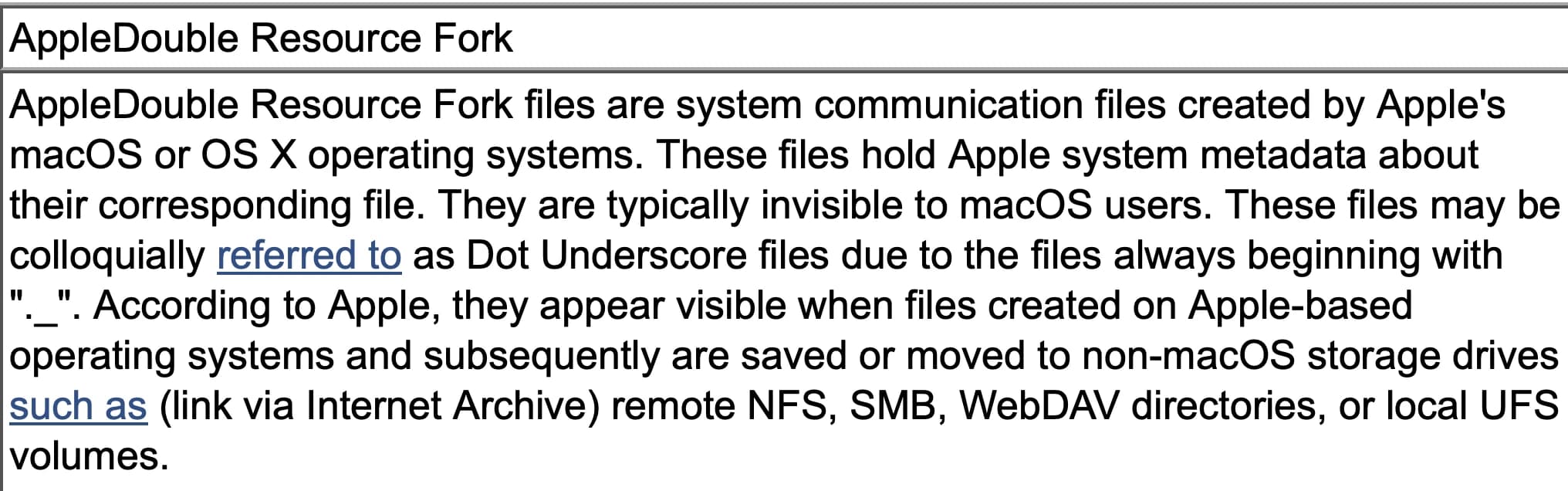
Screenshot: Library of Congress, AppleDouble Resource Fork, captured November 1, 2026. This is a format description, not a scan of your files.
Data can travel separately from metadata
AppleDouble separates the ordinary data from the resources and attributes associated with it. RFC 1740 describes this separation in the context of transferring Macintosh files. The ordinary data remains independently accessible to a recipient who does not understand the companion format.
This is why “the document still opens” is an incomplete preservation test. It checks the part the application opened, not every attribute that accompanied the original.
You may already have encountered the @ marker in Mac file permissions. That marker concerns extended attributes attached to a file. A separate ._ entry is a different representation to investigate, not a second permissions setting.
Do not treat every hidden file as AppleDouble. .DS_Store, a dot-prefixed configuration file, and a dot-underscore companion have different purposes. A cleanup rule based only on “starts with a dot” is much broader than the question here.
Our test: identical text, different metadata
We tested a small example on macOS 15.7.5 on November 1, 2026. The source was a new, 28-byte text file containing only our editorial fixture text. We attached one custom extended attribute named com.example.VaultDogEditorial, with the value keep-this-metadata.
We created a ZIP with the Mac's built-in ditto, using its -c -k --sequesterRsrc --keepParent options. This tested a known archive path, not every ZIP writer or external drive. The local man ditto documentation describes that archive mode and its handling of metadata.
Inspecting the ZIP found two non-directory entries:
| Entry inside the archive | Size in this test | Role |
|---|---|---|
appledouble/sample.txt | 28 bytes | Our ordinary text |
__MACOSX/appledouble/._sample.txt | 225 bytes | Companion metadata |
The companion began with the AppleDouble signature 00051607. Its size was larger than the text itself. Comparing sizes therefore did not identify which entry contained the document text.
Next we extracted the archive in two ways. One copy used ditto -x -k, allowing the Mac tool to restore the archive's metadata. For the other, we used Python's ZIP reader to write only the ordinary text entry into a fresh directory.
| Copy inspected | Text bytes | Text SHA-256 comparison | Custom attribute |
|---|---|---|---|
| Original | 28 | Reference | Present |
| Restored with ditto | 28 | Same | Present |
| Ordinary ZIP entry only | 28 | Same | Absent |
All three text hashes were identical. The attribute was not. Comparing document bytes did not establish that the whole file's associated information survived.
This experiment covered one custom attribute in a controlled archive. It did not test a legacy application resource fork, Finder tags, a particular USB drive, or your backup service. Treat it as evidence of the distinction, not a universal recovery guarantee.
Inspect a specific copy before deciding
For a folder you own, native Terminal tools can answer a narrower question than a cleanup app's total count. These commands inspect example paths; replace them with your actual paths, keeping quotation marks around names with spaces:
ls -la "/path/to/folder"
file "/path/to/folder/._report.pdf"
xattr -l "/path/to/folder/report.pdf"
The listing identifies the pair. file may recognize the companion's format. xattr -l reads attributes attached to the ordinary file at that location; it does not promise to decode every separate companion.
An empty attribute listing does not prove that an external sidecar is unnecessary. You are looking at one representation and one copy. Keep track of whether you are inspecting the source, an extracted document, or a receiving drive.
If an attribute concerns a download, see what com.apple.quarantine means. Removing metadata is not a substitute for understanding an actual macOS warning.
Decide according to the destination
For your only copy, a backup, or material that must return to a Mac, preserve the source and its companions until a round-trip test succeeds. Open the restored document in the application that matters and check the features or metadata you actually need.
For a simple handoff to a recipient who needs only a PDF's contents, prepare a separate delivery copy. Verify that the intended document opens there and that the recipient has the ordinary file. Preserve the original separately. This makes the tradeoff explicit without applying a deletion rule to an entire drive.
The native dot_clean command exists, but its manual includes merge choices and options that delete companions. Do not equate the command's name with guaranteed lossless cleanup. Read man dot_clean on your Mac and test any chosen operation on a disposable copy first.
For a repeatable handoff, record the original path, destination, copying tool, and what you checked afterward. Our guide to comparing files before and after a change explains why a list of names alone is not proof that everything stayed the same.


