
In this article
Start with the website you actually need
Open the meeting or recording page where the failure occurs. If it requests camera access, read the site name before deciding whether to allow it. A result from an unrelated webcam-test site does not describe the permission saved for your meeting site.
In Chrome's Camera settings, inspect the site's allowed or blocked status and the default camera selection. Then return to the page and try its own camera preview. Follow any request to restart Chrome; save unfinished forms and other work before quitting. These controls are described in Google's camera and microphone instructions.
Change one thing at a time. Write down whether the result was a missing device, a permission error, a black preview, or an image from the wrong camera. “Still broken” is difficult to compare; “the built-in camera is now listed, but the preview stays black” identifies progress and a remaining problem.
Do not start by deleting Chrome, resetting every permission, or changing unrelated privacy categories. First establish which part of this particular request is failing.
Why FaceTime is not a permission test for Chrome
Apple says that FaceTime, Photo Booth, and other apps supplied with the Mac automatically have camera access. Installed third-party apps have their own access controls. A successful FaceTime preview therefore cannot stand in for inspecting Chrome's entry.
Open System Settings > Privacy & Security > Camera and inspect Chrome's setting. Apple explains that this list contains installed apps that have requested camera access. If Chrome is absent, return to the intended website and attempt its camera function so you can observe the actual request or error. An absent row is not evidence that permission is already enabled. See Apple's camera-access guide.
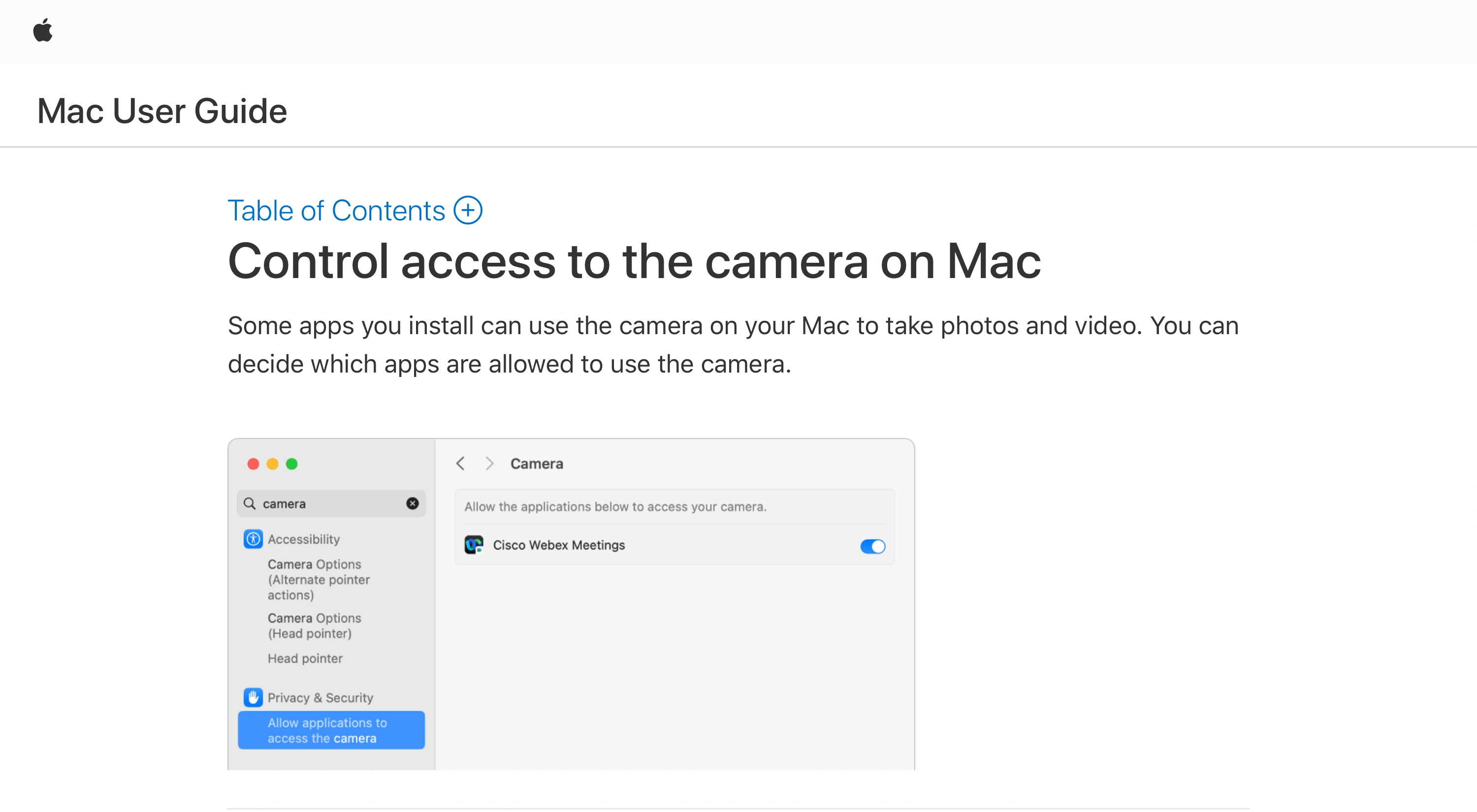
Apple's camera-access documentation, captured November 18, 2026. The illustrated control applies to app access; the guide also explains the built-in-app exception. Source.
Think of the observation narrowly: FaceTime produced an image from one camera at one moment. That is useful evidence, but it says nothing by itself about the permission stored for a particular website, the device selected by that website, or the result of a later attempt.
Keep the camera constant
A Mac can offer more than one camera source. Before comparing two apps, record the device name each is using. Comparing a built-in camera in FaceTime with an external or virtual camera in Chrome tests two different paths.
Use the camera selector exposed by the website, when it has one, and compare it with Chrome's default selection. If the website shows an image from a different device, correct that selection before drawing a conclusion about permissions.
For a cleaner comparison, finish the FaceTime test and close its call or preview before trying the website again. This is a way to reduce changing conditions, not proof that another app was causing the failure.
Also keep the website address and Chrome profile constant. A successful result in a second browser is useful comparison evidence, but it does not change the settings or explain the exact failure in the original browser.
A worksheet for one controlled attempt
The following is an editorial diagnostic checklist, not a claim that we reproduced a Chrome camera fault. Its purpose is to turn several ambiguous settings into a record you can compare or send to the site's support team.
| Record | What to write down | What it helps distinguish |
|---|---|---|
| Working reference | Camera name and whether FaceTime shows a live image | A working reference for that device |
| Browser target | Exact website and Chrome version | The environment where the failure occurs |
| macOS access | Chrome present or absent; allowed or off | App-level access |
| Website access | Allowed, blocked, or still asking | Site-level access |
| Selected source | Camera named in the site's picker | A device mismatch |
| Result after one change | Exact error or preview behavior | Which action changed the symptom |
Fill the observations in before changing anything. After one change, repeat the same camera action on the same page and record the outcome. Keep the original error text if it disappears: it may explain why the first attempt differed.
For example, “FaceTime works; Chrome is allowed” leaves the website setting unknown. Adding “the site is blocked” identifies a specific control to review. Conversely, if both permissions are allowed and the intended device is selected, repeating the same toggles provides little new evidence.
When these checks do not resolve it
Google notes that an administrator can control camera settings on a managed browser. If a setting is locked or policy-controlled, report the specific website and symptom to that administrator instead of trying to override the restriction.
If the setting is editable but the page still fails, preserve the worksheet and the exact error for the website or browser support channel. Include whether another site or browser worked with the same device, while keeping that comparison separate from the original result.
Camera access is also a different question from file access or the capabilities an app declares. Our guides to entitlements versus granted permissions and Full Disk Access versus Files and Folders explain those boundaries. They are not additional camera fixes.
Stop once the intended site displays the intended camera and your task works. The useful outcome is a verified change on that page, with unrelated permissions left alone.


