
In this article
The distinction becomes useful when an About window, Finder and an inventory tool seem to disagree. Before reinstalling anything, establish which number each place is showing and whether you are looking at the same copy of the app.
Start with the app’s About window
For an app you already use, make it active, open the menu bearing its name beside the Apple menu, and choose About [app name]. Record the full version line, including a number in parentheses or a separately labeled build.
The precise presentation belongs to the developer. Omni’s support guide, for example, distinguishes a version from an extended revision and explains why several test builds can share one version. Its illustrated About window is an Omni-specific example, not a layout every Mac app must follow.
If the app is unfamiliar or you only need to inspect a downloaded copy, you do not have to launch it. Select that exact app in Finder and use Get Info for the displayed version and location. For the two underlying metadata fields, use the read-only lookup below.
Do not confuse the application’s version with the macOS version in About This Mac. A support request may need both, but they identify different software.
Two fields, two different questions
Apple names the usual release field CFBundleShortVersionString. The build field is CFBundleVersion.
| Field | Question it helps answer |
|---|---|
| Release version | Which app release does this copy declare? |
| Build number or string | Which build of the app does this copy declare? |
| Bundle identifier | Which app identity does this bundle declare? |
| File path | Which local copy did you inspect? |
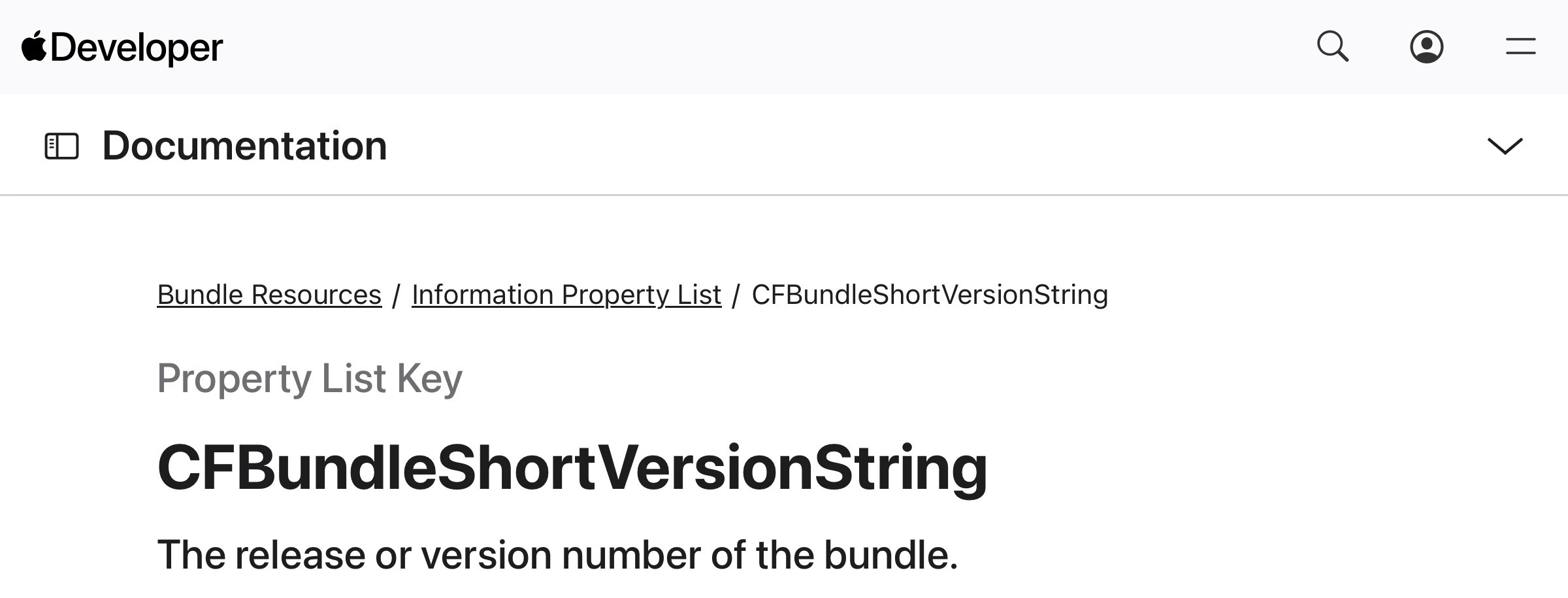
Source: Apple Developer’s release-version reference, captured October 29, 2026. This is a documentation excerpt, not a screenshot of an installed app.
Apple’s Xcode version and build guidance treats the values separately when preparing releases. For troubleshooting, the practical consequence is simple: keep the labels with the values. A larger build number is not a competing release version, and a dotted build string is not necessarily the public release number.
The bundle ID is another separate field. Matching IDs can help identify related copies, but they do not tell you that those copies have identical versions or bytes.
Read both values from the exact copy
In Terminal, these built-in commands print two values from Calculator’s installed bundle without editing it:
plutil -extract CFBundleShortVersionString raw -o - "/System/Applications/Calculator.app/Contents/Info.plist"
plutil -extract CFBundleVersion raw -o - "/System/Applications/Calculator.app/Contents/Info.plist"
For another app, replace the quoted path with that app copy’s Contents/Info.plist path. Keep the quotes around spaces. If you need help locating the file, see what Show Package Contents reveals.
Here, -extract selects the key, raw asks for its value, and -o - sends the result to the terminal. These are read operations. Do not open the plist in an editor and save new values to make two displays agree.
Read errors literally. “No such file” suggests a path problem; an absent key means that key was not found in the selected plist. Neither result establishes that the app is malicious or that its updater failed. A helper inside an app may also have its own plist and version: inspect the main app when that is the subject of the support request.
What three installed Apple apps reported
On macOS 15.7.5, October 29, 2026, we read the two fields directly from three system application bundles:
| App in /System/Applications | Release version | Build |
|---|---|---|
| Calculator | 11.0 | 224 |
| TextEdit | 1.20 | 409 |
| Preview | 11.0 | 1069.7.1 |
This was a read-only observation of the installed files. We also checked the two Calculator commands above and obtained 11.0 and 224.
The examples show two useful boundaries. Calculator and Preview shared the release string 11.0, despite being different apps with different builds. Preview’s build contained periods; TextEdit’s did not. You cannot identify an app, or reliably decide which field you are reading, from the shape of the number alone.
These are observations from one Mac, not a list of current versions everyone should have. System apps can differ with the installed OS. The table does not establish update availability, compatibility or security status for your computer.
When two displays still disagree
First compare like with like. A tool reporting a build of 224 and an About window reporting version 11.0 could be describing the same Calculator copy. Replacing one with the other in a support note loses information.
Next compare locations. An installed app, an older copy in Downloads and a copy on another volume can have similar names. Write down the location of the bundle whose metadata you inspected. If the mismatch concerns a running app, use its About information as the running-app observation and label the separate disk lookup accordingly.
If the same field from the same copy still conflicts with the app’s display, preserve both readings. An app can choose its own About text; metadata can also be missing or stale. Contact its developer with the exact values and locations instead of repairing the bundle yourself.
Version strings are declarations, not authentication. If the question is who signed a copy, use the separate code-signature check.
Send a support note that can be reproduced
A useful note includes the app name, the complete About version line, both metadata values if requested, the inspected path, macOS version and the date of the check. Also mention whether you opened the app or only inspected its bundle.
For our observed example, that note would say: Calculator, release 11.0, build 224, /System/Applications/Calculator.app, macOS 15.7.5, checked October 29, 2026. Keeping those fields together gives support a concrete copy to discuss, without claiming it is the latest release.


