
In this article
A Mac app often looks like one file because Finder presents its bundle as a single item. Inside are executable code, metadata, and resources. Understanding that boundary helps when you are following support instructions or wondering why an app occupies space.
Find the actual application first
Open Applications in Finder and select the app you intend to inspect. Check its location with File → Get Info if there are several copies. An app in Downloads and one in Applications may have different versions despite sharing a name.
Control-click its icon, choose Show Package Contents, then open Contents. Apple documents this route in its bundle identifier instructions. You do not need to rename the app, disable a security setting, or run an installer to reveal a normal application bundle.
Use the Finder window to browse folder names. Avoid double-clicking unfamiliar executables, scripts, or nested apps inside it. Opening the package for inspection and executing one of its components are separate actions.
If the menu item is absent, first check what you selected. A Dock icon, an alias, a disk image, and an installer file are not the same object as the actual application. Navigate to the application itself instead of trying to repair the context menu by changing file extensions.
Read the folders as parts of one app
Apple’s bundle content locations distinguish metadata, code, and resources. The common structure is useful as a map, but individual apps can include additional components.
| Location inside the app | Typical role | Inspection boundary |
|---|---|---|
Contents/Info.plist | Bundle configuration and identifiers | Reading a value is different from changing it |
Contents/MacOS/ | Main executable code | A filename is not an instruction to run it |
Contents/Resources/ | Images, sounds, localized text, and other resources | “Resource” does not mean dispensable |
Contents/Frameworks/ | Frameworks or libraries bundled with the app | Keep the supplied structure intact |
Contents/PlugIns/ | Bundled plug-ins or extensions | Presence alone does not describe current activity |
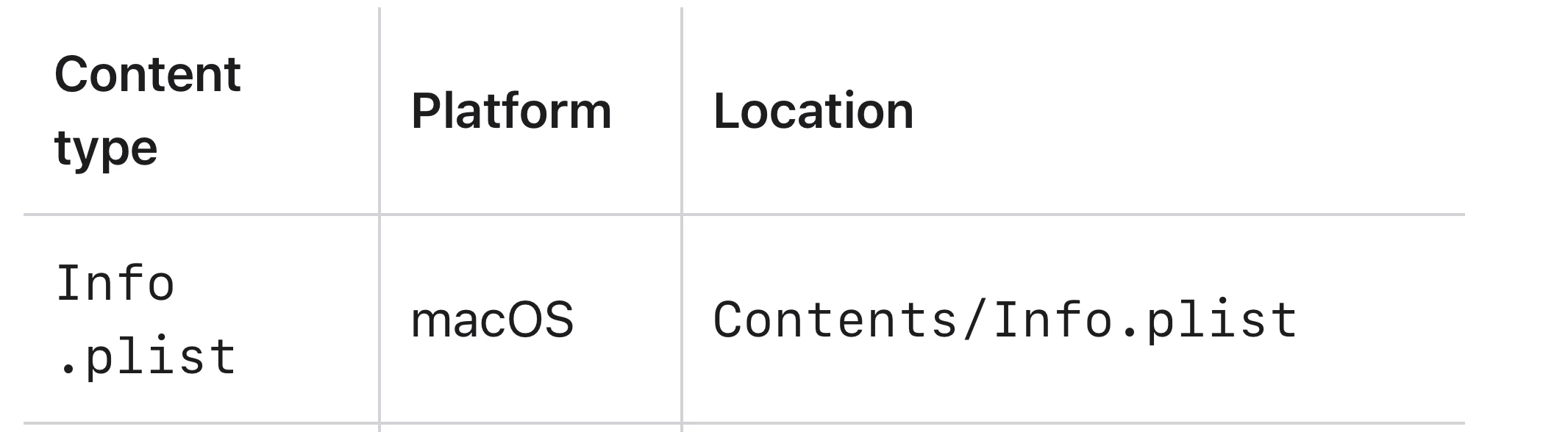
Screenshot: Apple Developer documentation lists platform-specific bundle locations. Captured October 26, 2026.
The same documentation covers several Apple platforms. Read the macOS rows when inspecting a Mac application; an iOS layout is not a template for rearranging its folders.
For example, discovering an embedded helper tells you that code exists in the bundle. It does not tell you that the helper is running, starts at login, or has been granted a particular privacy permission. Those questions require their own evidence.
A current, read-only TextEdit inspection
On October 26, 2026, we inspected /System/Applications/TextEdit.app on macOS 15.7.5, without launching or changing it. We listed its immediate Contents entries and parsed its property list. This particular copy reported TextEdit 1.20, bundle ID com.apple.TextEdit, and executable name TextEdit.
| Item observed in this copy | Type |
|---|---|
Info.plist | File |
MacOS | Directory |
PkgInfo | File |
Resources | Directory |
_CodeSignature | Directory |
version.plist | File |
This example shows why a short “three folders in every app” diagram is incomplete. Our copy had additional files and signature information, while it did not have every optional folder in the general map above. Other apps and versions can differ.
We also calculated SHA-256 hashes for Contents/Info.plist and Contents/MacOS/TextEdit before and after the inspection. Both hashes were unchanged. That is a narrow check that these two files retained the same bytes during our read-only procedure. It is not a signature validation, a malware scan, or proof about every file in the app.
You can make a similarly useful inspection note without collecting a full filesystem dump: record the exact app path, version, relevant internal path, and the question you are trying to answer. If you need the identifier specifically, use our focused guide to finding a Mac app’s bundle ID.
An application package is not an installer package
The word “package” causes confusion here. Finder can present a directory as one item, while a modern .pkg installer is commonly a flat file with a different structure.
The developer of Suspicious Package, a tool for inspecting installers, explains this distinction in its FAQ about Show Package Contents. A modern flat installer does not offer the same Finder command. An older bundle-style installer may expose internal files, but those files are not automatically a readable list of everything it will install.
Do not rename a .pkg to .app to make the menu appear. Choose an inspection method designed for that file type. If the software has already been installed and your question is where its installer put files, see Mac installer receipts and installed-file lists.
The bundle does not contain all of your app’s data
A folder inside the bundle belongs to the supplied application structure. Separately, an app can create support files, caches, downloaded content, or documents in other locations. Browsing Contents is therefore not a complete inventory of its footprint on your Mac.
If your goal is reclaiming storage, compare the bundle with the relevant data locations using Finder and Storage measurements. Do not delete a large Resources folder simply because it is easy to see. Images, localization files, and other components may be needed by the app.
Editing signed components can also affect integrity checks. Apple explains the checks performed when opening software in Safely open apps on your Mac. A familiar folder layout or the presence of _CodeSignature is not a substitute for checking the actual signature and obtaining the app from a trustworthy source.
Finish with an inspection note, not a cleanup guess
Before closing the package, answer four questions: Did I inspect the intended copy? Which internal path answered my question? Did I only read it? Does the next step concern the bundle, an installer, or data outside the app?
If support asks for a change, use instructions for your exact app version and keep a recoverable original. For ordinary investigation, leave the structure as supplied. Knowing what a component is for is a better stopping point than removing it to see whether the application still opens.


