
In this article
Finder’s Universal label and Activity Monitor’s Intel label can both be correct. One describes what the app contains; the other describes the process you are observing. Reinstalling the app before checking that distinction can leave the apparent mismatch unchanged.
Start with the exact app in Finder
On an Apple-silicon Mac, locate the application you actually open, select it, and press Command-I. Read Kind. Apple distinguishes Intel, Universal, and Apple-silicon applications there. A Universal app supports both processor families. If Open using Rosetta appears and is selected, the app is configured to launch through Intel translation. The developer controls whether that option is offered. Apple’s current Rosetta guide documents these checks.
Before changing it, save your work and consider any plug-ins your projects need. An Intel-only add-on may be the reason the option was enabled. Once compatible versions of those add-ons are installed, deselect the option, quit the app completely, and reopen it. Closing a document window alone is not a useful relaunch test.
If the checkbox is absent, stop looking for a hidden version of it. Its absence does not invalidate the Universal label. Continue by identifying which process and which app copy you are comparing.
Check the process, not just its familiar name
Open Activity Monitor, find the app, and inspect its Kind column. Apple’s porting session demonstrates this column for checking running architecture. On Apple silicon, Apple identifies a native process and Intel identifies an Intel process running through translation. Enable the column from the column controls if it is hidden.
Write down the process name and PID before relaunching; then inspect the new process. This avoids comparing yesterday’s screenshot with today’s Finder information. Also check whether the row belongs to the main application, an updater, or a helper. A familiar name fragment is not enough to establish that two rows are the same component.
Use Activity Monitor’s process details and View → All Processes, Hierarchically when the relationship is unclear. Apple explains these inspection tools in its process information guide. Our guide to apps with multiple processes explains why a single application can have several entries.
If multiple copies are installed, record the application’s location in Finder too. A copy in Downloads and a copy in Applications can share a name while containing different versions. Launch the copy you inspected, rather than assuming a similarly named shortcut refers to it.
Why two architectures can produce one Intel process
A Universal executable contains architecture-specific code, commonly called slices. It does not execute both slices simultaneously in one process. Apple’s universal binary documentation describes packaging code for both Intel and Apple silicon in one binary.
The choice happens when the executable launches. Apple silicon normally uses the native slice. Rosetta provides a path for the Intel slice, including situations where older plug-ins require it. Apple also states that a process cannot mix arm64 and x86_64 code: translation applies to the process and the code modules loaded into it. See the Rosetta translation environment.
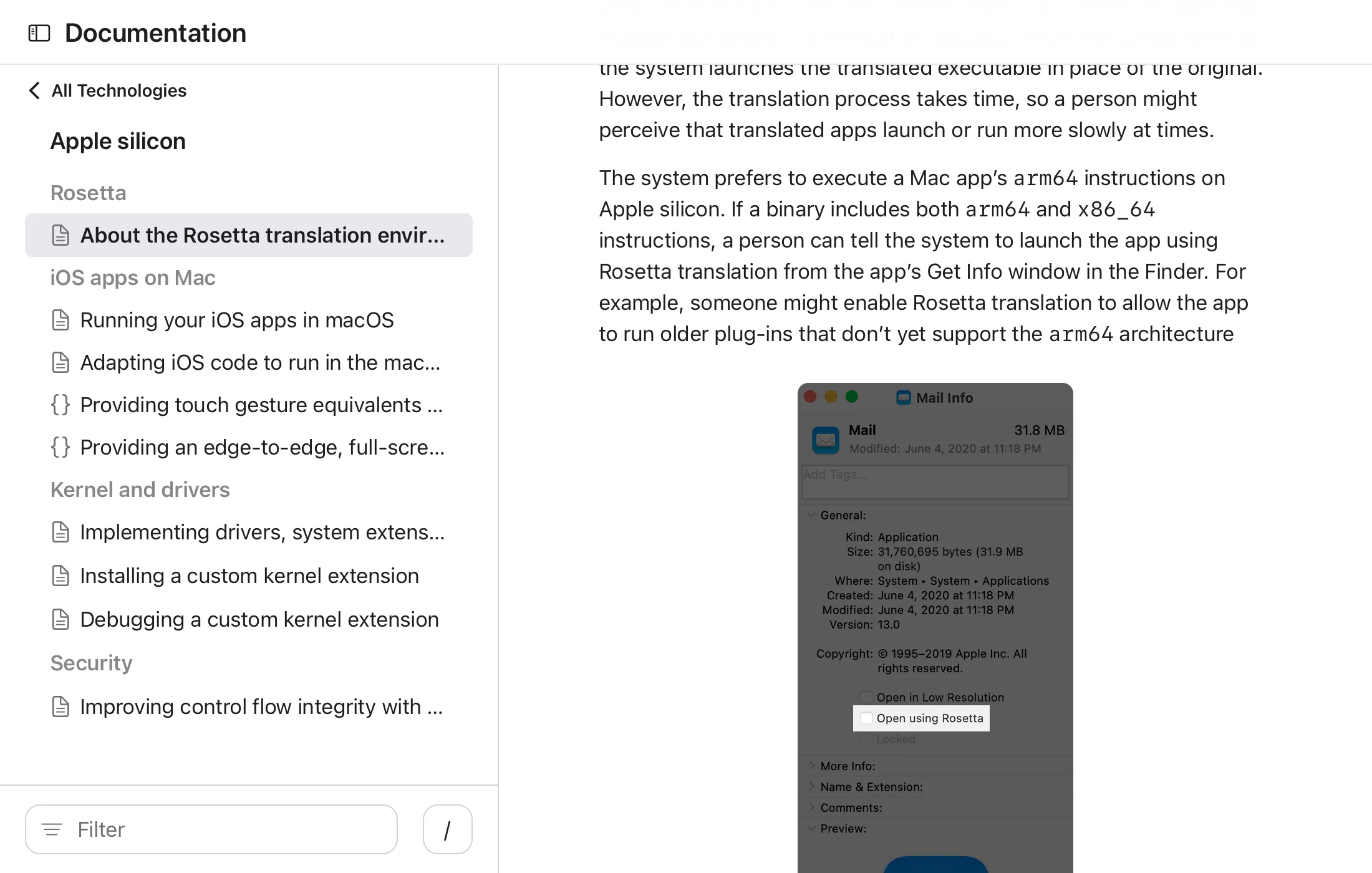
Current Apple Developer documentation, captured October 20, 2026. The source page distinguishes the available code from the selected execution mode. This is documentation, not a capture of the reader’s app.
Our test: the same file, two launch modes
To test the distinction directly, we compiled a small disposable command-line program with both arm64 and x86_64 slices on macOS 15.7.5. We then launched the unchanged file once with each architecture selected. The program reported its compiled architecture and queried Apple’s sysctl.proc_translated flag from inside its own process.
| Observation | Native launch | Intel launch |
|---|---|---|
| Architectures present in the file | x86_64 and arm64 | x86_64 and arm64 |
| Slice executed | arm64 | x86_64 |
| Translation flag returned | 0 | 1 |
The file retained both architectures in both runs. Only the selected execution mode changed. This is a controlled executable test performed on October 20, 2026; it is not a benchmark, a test of a commercial app’s plug-ins, or a claim that every app exposes a Finder checkbox.
The flag is process-specific. Reading it from a separate Terminal command does not tell you whether an unrelated running app uses Rosetta. For everyday troubleshooting, inspecting the relevant Activity Monitor row is more useful than copying a diagnostic command without understanding which process it measures.
Decide what to change from the evidence
Use this short comparison before deleting or reinstalling anything:
| What you find | Useful next action |
|---|---|
| Universal app with Rosetta selected | Check plug-in compatibility, then test a full native relaunch. |
| Main app is native; one helper is Intel | Identify and update that component separately. |
| Different app copies or versions | Repeat the comparison using one recorded location. |
| Intel-only application | Look for a compatible release from its developer. |
| Same main process stays Intel after a controlled relaunch | Send the developer the app version, location, macOS version, and before/after observations. |
Treat architecture as a compatibility clue, not a security verdict. An Intel process is not evidence of malware, and a native process is not a safety guarantee. If your concern is who supplied an application, checking its code signature answers a different question.
Keep a known-working setup until you have tested the documents and plug-ins you depend on. The useful outcome is a verified launch mode with working features—not merely a different word in a column.


