
In this article
Start with the exact item in Get Info
Select one file and press Command-I. In General, look for Locked. Then expand Sharing & Permissions and read the privilege beside your user account. Those checks answer different questions: is the item marked against changes, and what may this account do with it?
The small padlock used to unlock permission editing is a third thing. It controls whether you can change the settings in that panel; its closed appearance does not mean the document's Locked checkbox is selected.
Apple's permissions guide defines Read only as allowing an account to open an item without changing its contents. That is useful protection against an ordinary write, but it is not a complete description of every operation on the file.
If your goal is to protect a draft from accidental edits, inspect these controls before changing anything. If your goal is removal, first confirm that the selected item belongs to the app or project you intend to remove. A permission setting cannot establish ownership or whether another app needs the data.
What the two settings tell you
| What you see | What it controls or describes | What it does not establish |
|---|---|---|
| Locked checked in General | A document lock intended to prevent accidental changes | Encryption, secrecy, or permanent protection from deletion |
| Read only beside your account | That account's permission to read rather than write the item's contents | Whether its enclosing folder permits removing the directory entry |
| Padlock beside permission controls | Access to editing those controls | Whether General → Locked is checked |
| “Locked” or “read-only” inside an app | The app's description of why editing is unavailable | Which filesystem, document, or access restriction caused it |
Apple's document-locking instructions explicitly describe a warning when moving a locked document to the Trash. They also say emptying the Trash deletes that document. Treat the lock as protection against accidents, not a backup.
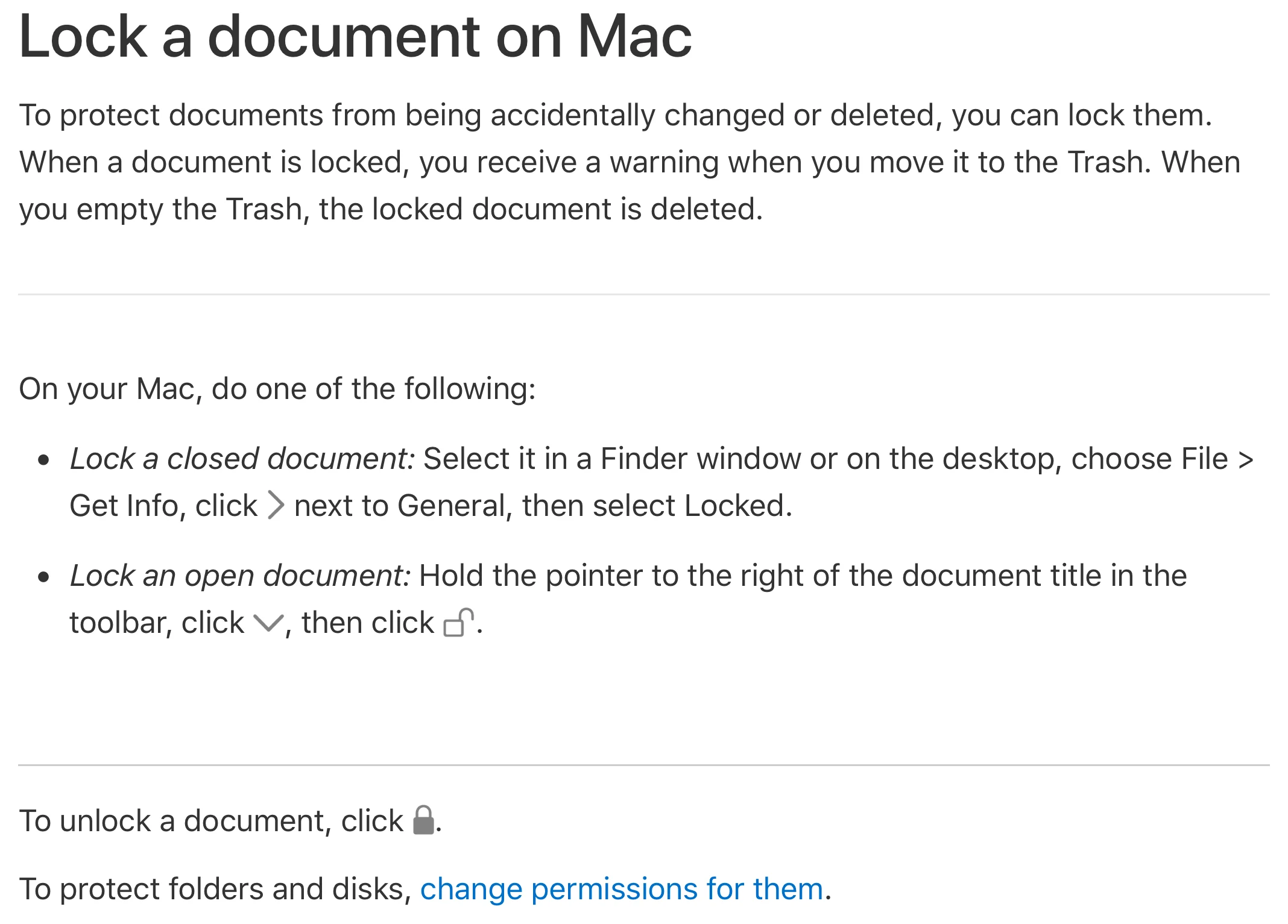
Apple's Lock a document on Mac guide, captured October 22, 2026. Notice the distinction between a warning and permanent deletion protection.
An application can use “locked” more broadly. Apple's NSDocument documentation lists several possible reasons, including write permissions, an immutable flag, or a read-only parent directory or volume. An error message alone therefore does not identify the checkbox you need.
A controlled test: read-only did not stop removal
We tested two newly created text files on macOS 15.7.5, build 24G624, on October 22, 2026, under an ordinary user account. Both were in the same local writable test directory. No existing documents, app files, or system settings were changed.
For the first file, we removed write permission and left owner-read permission: mode 0400. For the second, we left owner read/write permission, mode 0600, and set the user-immutable flag, UF_IMMUTABLE. A Python script attempted to append text and then remove each directory entry with unlink.
| Test file | Append attempt | Direct unlink attempt |
|---|---|---|
| Owner read-only, no immutable flag | Permission denied | Succeeded |
| Owner read/write, user-immutable flag set | Operation not permitted | Operation not permitted |
The first result is the useful surprise: an inability to change file contents did not prevent removal. The second showed that an immutable flag could block both operations even though the owner still had write permission.
This was a filesystem test, not a recording of Finder's Trash workflow. Finder can present a warning and handle a lock as part of an interactive operation. We did not test network shares, iCloud synchronization, other users, administrator overrides, or every possible access-control list. The remaining test file was unlocked after the observation.
Why the enclosing folder matters
A file contains data; a directory contains the entry that names it. Writing the contents and removing that entry are different operations.
Apple's archived File System Programming Guide distinguishes file write permission from directory write permission. Directory permissions govern changes to its contents, including moving, renaming, and deleting enclosed entries. Search permission and additional restrictions also matter.
That explains our test without making “read-only files are always deletable” a rule. Access-control lists can distinguish write and delete rights. An immutable flag or a read-only filesystem can introduce another restriction. Inspect the enclosing folder when the file's own settings do not explain the result.
Avoid applying a recursive permission change to an entire Library folder just to fix one item. It changes a much larger set of objects than the evidence supports. For app data, first review what Application Support can contain.
When the message points somewhere else
A file that opens in Finder but cannot be edited by one app may involve that app's access, document format, or save behavior. macOS privacy permissions are a separate layer from these filesystem controls; Full Disk Access and Files and Folders address a different question.
Likewise, an “in use” message is not proof that the Locked checkbox is selected. An open file and a deleted directory entry have their own relationship, explained in why a deleted file can remain open.
For a shared drive or managed Mac, record the exact error and ask the owner or administrator about the intended access. Do not infer that every permission failure is a damaged disk or an unwanted app.
A short decision checklist
Before making a change:
- Confirm the exact file and its purpose; keep a backup of anything you need.
- Inspect General → Locked and your Sharing & Permissions entry separately.
- Inspect the enclosing folder if removal or renaming behaves differently from editing.
- Record whether the problem occurs in Finder, one app, or on a particular volume.
- Change only the relevant setting for an item you control, then retry the original operation.
For accidental-edit protection, a document lock may be enough. For account access, review permissions. For deletion, establish what the file is and why removal is blocked before choosing a remedy.


