
In this article
That distinction matters when you sort a collection of project folders. An older-looking folder can contain today’s work. Before treating its date as evidence of a failed save, inspect the actual document you edited.
Start with the file you changed
In Finder, open the relevant folder, switch to List view, and click the Date Modified column heading. Click again if necessary to put the newest items first. If the column is missing, use the list’s column controls to show it. Apple documents these sorting controls in its Finder sorting guide.
Select the document and choose File → Get Info, or press Command-I, to inspect that item’s date. Confirm the filename and location, especially when you have copies in Downloads, iCloud Drive, or another project folder.
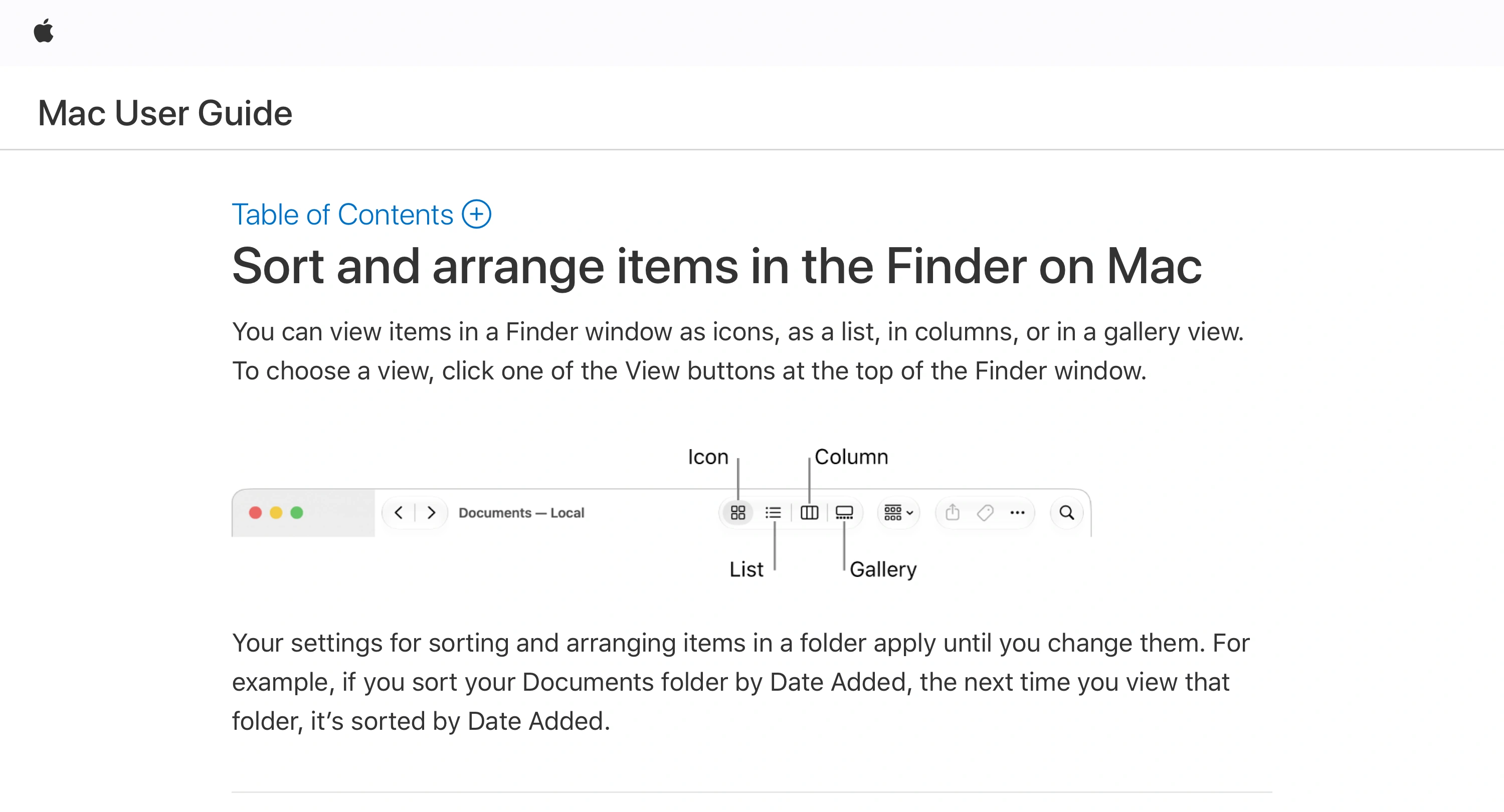
Source: Apple’s Finder sorting guide, captured November 19, 2026. Sorting applies to the items in the view; it does not turn a folder’s date into a summary of every descendant.
If you need to find recent work across several subfolders, search the intended location in Finder and use a modification-date criterion. Check the selected search scope before interpreting the results. Search results depend on what Finder can find; they are a convenient locator, not proof that every file in the tree was examined.
Our guide to Finder Recents and the original files it displays explains the similar distinction between a search view and a storage location.
The folder’s list and a file’s contents are different things
A folder is a directory with entries pointing to files and subfolders. Changing those immediate entries is different from changing the bytes inside an existing file.
Adding, removing, or renaming a direct child normally changes the directory. Writing into a file that already occupies an entry need not change that entry. Likewise, changing something inside a nested subfolder need not change the outer folder.
This is why “the folder was modified yesterday” and “this document was edited today” can both be correct. The timestamps describe different objects.
Apple’s archived stat manual distinguishes the data-modification timestamp from status-change and creation timestamps. It is an older reference, so we checked the directory behavior separately on a current local test environment rather than treating it as evidence about every modern storage provider.
What changed in our APFS test
On November 19, 2026, we created an owned test folder on local APFS under macOS Sequoia 15.7.5. It contained one text file and a nested folder with another text file. We recorded modification timestamps at nanosecond precision before and after five operations, separated by about a second.
| Operation | Outer folder’s date changed? | What else changed? |
|---|---|---|
| Append text to an existing direct file | No | That file’s modification time |
| Add a new file directly inside the folder | Yes | A new directory entry appeared |
| Append text to the nested file | No | The nested file’s modification time |
| Add a new file inside the nested folder | No | The nested folder’s modification time |
| Create a temporary sibling, then replace the direct file by renaming it | Yes | The direct file was replaced |
These are measured results from our local fixture, not a claim that all apps save identically. The first operation changed an existing file in place. The last operation replaced it with another file, which changed the parent directory too.
That last row explains a common apparent contradiction: editing in one app may update the folder’s date, while editing in another does not. An app can save by writing a temporary file and replacing the original. It may also create a backup or another companion file. The visible action is “Save,” but the filesystem operations can differ.
The test did not cover iCloud synchronization, network shares, external filesystems, or restoring timestamps from an archive. Treat those as separate cases.
Check the underlying dates without changing them
For a precise comparison, macOS includes the read-only stat command:
stat -f '%Sm | %N' -t '%Y-%m-%d %H:%M:%S' "/path/to/Project" "/path/to/Project/notes.txt"
Replace both example paths with the actual folder and file. Keep the quotes around paths with spaces. The command prints each object’s modification time; it does not edit the timestamps or recursively inspect the folder.
A newer date on the document and an older one on its parent is consistent with an in-place edit. It does not, by itself, show that Finder failed to refresh or that the save failed.
If the document itself has an unexpected date, reopen the intended file and verify its contents. Check whether the app saved a different copy or location. If Terminal reports a permission error, that is a separate access question; folder read and execute permissions affect what you can inspect.
Avoid changing dates just to make the list look right
Manually setting a folder’s timestamp to match its newest descendant can make a particular sort order convenient. It also replaces the timestamp you were trying to interpret. It does not repair a missing save, synchronize a cloud copy, or create a history of changes.
Choose the next step according to the question:
- Where is the document I just edited? Inspect or search for the document itself.
- Did a direct child get added or renamed? Compare the directory’s immediate entries and timestamp.
- What changed anywhere in this project? Use a before-and-after inventory or the project’s version history.
- When was an application installed? A Finder timestamp alone is insufficient; see Mac app installation dates.
A folder date is useful metadata when you ask it the right question. For a record of changes across a whole tree, keep actual snapshots or version history instead of relying on one date attached to the outer folder.


