
In this article
Measure the folder you actually mean
Replace the placeholder with the exact folder you want to inspect:
/usr/bin/du -sh "/path/to/folder"
This requests one usage summary for that folder. The quotes keep a path containing spaces together. It reads filesystem information; it does not delete files, change their visibility, or decide which data an app still needs.
To see the folder and its immediate subdirectories, use:
/usr/bin/du -h -d 1 "/path/to/folder"
Keep any errors visible. A result accompanied by access errors may be incomplete. Start with a specific folder you own rather than scanning the entire startup disk or granting broad permissions just to obtain a larger total.
Apple’s published du manual source describes the distinction between file arguments and directory hierarchies. The manual installed on your Mac is also available through man du; it is the right place to check options for that particular version.
The star changes the inputs before du starts
Consider two commands run from inside the same folder:
| Command | What you asked to measure |
|---|---|
du -sh . | The hierarchy rooted at the current directory |
du -sh * | The items matched by the shell’s star pattern |
du -h -d 1 . | The current hierarchy, with a shallow directory report |
The period in the first command means the current directory. The star in the second is a filename pattern, or glob. Under ordinary zsh settings, its immediate matches exclude names that begin with a dot. By the time du runs, it receives the expanded names, not a request to “include everything here.”
The official zsh filename-generation documentation explains the leading-dot rule and its GLOB_DOTS exception. Custom shell settings can change matching, so the precise claim is about the pattern’s actual expansion, not an unavoidable property of every Terminal session.
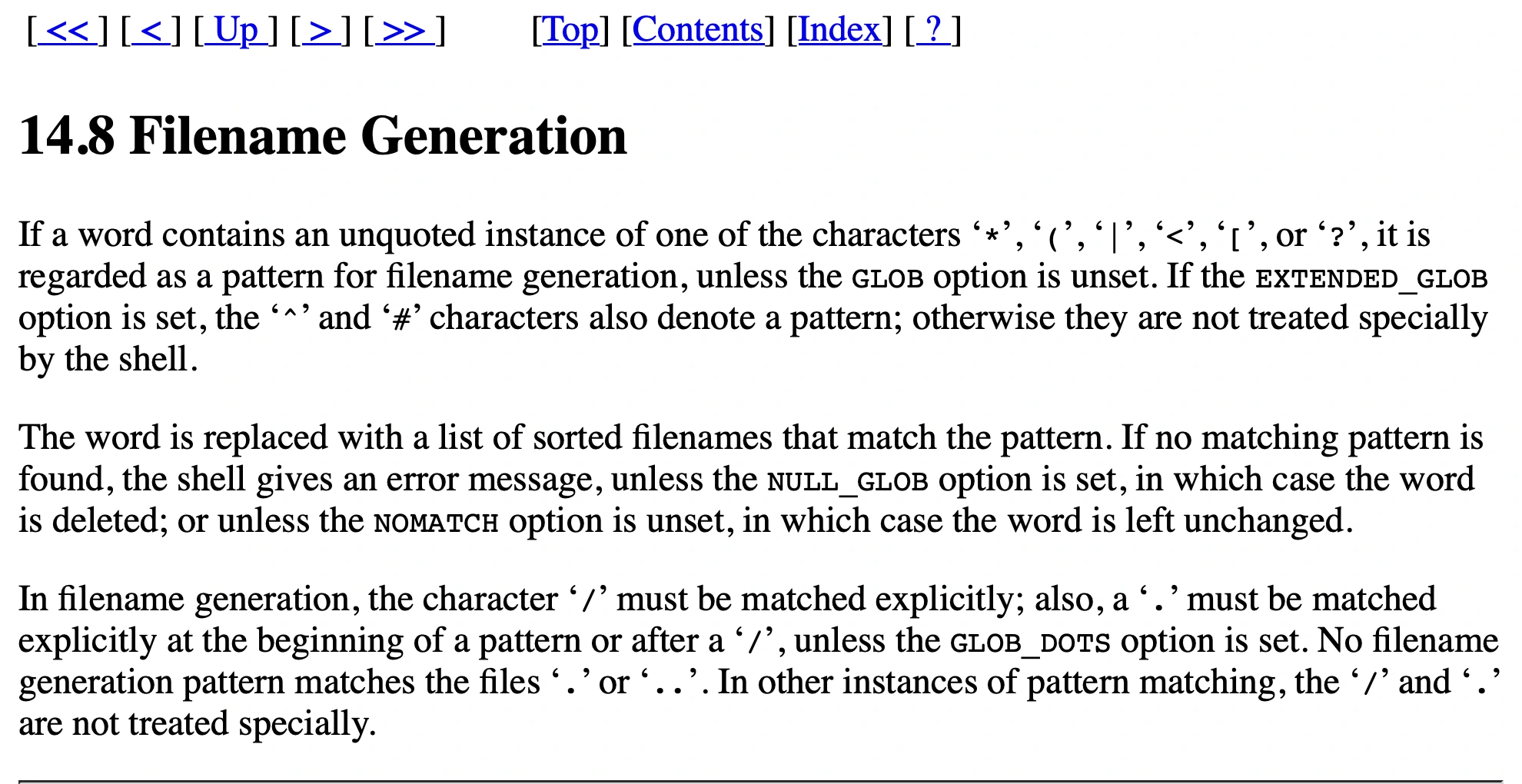
Source: official zsh manual, captured November 22, 2026. This excerpt documents shell matching, not a storage measurement.
A dot-prefixed name is also different from a normally named item hidden in Finder by a filesystem flag. See dot names versus the hidden flag. Changing Finder’s display does not repair a command whose shell pattern selected the wrong inputs.
Our test counted 5 MiB versus 15 MiB
On November 22, 2026, we tested the bundled du with zsh -f on macOS 15.7.5, Apple Silicon. The test used four newly written random-data files in a disposable folder. No installed app or personal folder was scanned.
| Test file | Allocated usage observed |
|---|---|
visible.bin | 1 MiB |
.hidden.bin | 2 MiB |
visible-folder/.nested.bin | 4 MiB |
.hidden-folder/data.bin | 8 MiB |
We used -k for the recorded measurements, giving a consistent 1,024-byte unit. The unmodified star expanded to just visible-folder and visible.bin.
Consequently, du -sk * printed 4,096 for the visible directory and 1,024 for the visible file: a combined 5,120 KiB, or 5 MiB. In the same fixture, du -sk . printed 15,360 KiB, or 15 MiB.
The missing 10 MiB came from two omitted top-level arguments: the 2 MiB dotfile and the 8 MiB hidden directory. It was not evidence that the files were corrupt, that storage needed rebuilding, or that an app had concealed its disk usage.
The useful twist is the 4 MiB nested hidden file. It was counted even in the star-based command, because its visible parent directory was passed to du. Once traversing that directory, du included its dot-prefixed child. Saying “du ignores all hidden files” would misdescribe the observation.
These totals belong to our controlled files and filesystem. They are not universal allocation sizes, a measurement of your Mac, or an estimate of reclaimable space.
A shallow report can still contain unlisted bytes
Our du -k -d 1 . result contained three rows:
| Reported KiB | Path |
|---|---|
| 8192 | ./.hidden-folder |
| 4096 | ./visible-folder |
| 15360 | . |
The parent total included the two regular files directly inside it, even though neither had its own row. Adding only the displayed child-directory rows therefore produced 12 MiB, not the parent’s 15 MiB. The report’s depth and display choices are another reason rows may appear not to add up.
To inspect every file in a small, chosen hierarchy, the separate command du -ak . can help. Expect much more output in a large tree. On our tested Mac, combining -a with -d 1 returned a usage error; do not assume a Linux example’s option combinations work identically here.
For readers already using zsh, print -rl -- *(D) previews immediate matches including dot names. In our fixture it listed all four immediate items. The qualifier applies to that pattern; changing persistent shell configuration is unnecessary for the simpler parent-folder measurement.
Before treating the difference as missing storage
Use this short reconciliation checklist:
- Match the starting path. A parent folder and its visible children are different input sets.
- Check the shell expansion. In zsh,
print -rl -- *shows the names selected by that pattern without measuring or modifying them. - Separate totals from displayed rows. A directory total can include files that the chosen report does not list individually.
- Keep scan errors. Do not hide permission failures and call the remaining result complete.
- Compare the same units and measurement. Allocated usage and logical file length can differ; our Finder and Storage size guide explains that separate issue.
Finally, a newly discovered large hidden folder is a location to investigate, not permission to remove it. If it contains application data, identify the owner and recovery options first; the Application Support retention guide provides a starting checklist. The immediate fix is to measure the intended hierarchy accurately. Any cleanup decision comes afterward.


