
In this article
The useful question is which layer you are looking at: a file association, an application bundle, or a process. Treating all three as leftover files leads to unnecessary cleanup and can change working file associations without solving the original problem.
Open the file without repairing the whole menu
For a one-time opening, launch your preferred installed app and use File → Open. Alternatively, select the file in Finder, choose File → Open With, and select the app. Apple also documents Control-clicking the file to reach Open With.
If you want that app to become the default for every file of the same type, select a representative file, choose File → Get Info, expand Open with, pick the app, then click Change All. That last step changes the association for the file type. It is more than you need just to open one document.
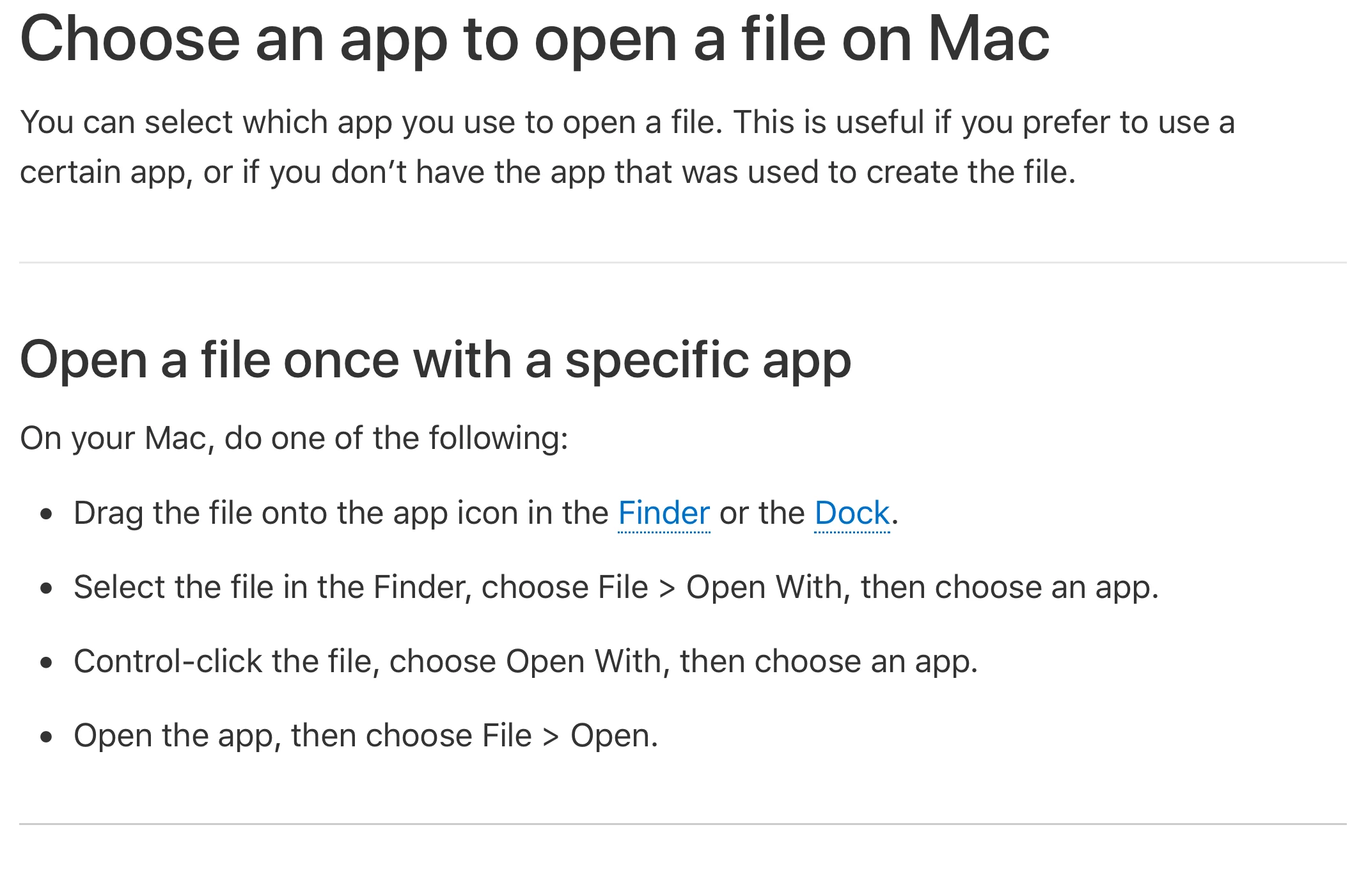
Apple Support’s Choose an app to open a file on Mac, captured October 23, 2026. This is the official documentation, not a screenshot of a reproduced stale-menu incident.
Keep the two goals separate: choosing the correct opener gets you back to work; removing an obsolete menu choice is a narrower housekeeping task. If the file opens correctly, there is no need to delete more support files merely because an unwanted name remains visible.
Why the menu and the Applications folder can disagree
Launch Services connects documents and other resources with applications that can handle them. Apple’s archived Launch Services concepts describe registration using application information, including supported document types and bundle identifiers.
That explains why a menu can contain information about an app rather than being a simple live list of one Applications folder. The archived document is useful for that model. It does not establish how quickly your current macOS version will remove an obsolete entry, or promise that a particular reset command is appropriate today.
There are several possibilities to distinguish. The name may refer to a copy you did not remove, such as an older version or a bundle in another location. It may be an obsolete registration. A duplicated display name also does not establish that the two entries have identical paths or versions.
Use the following checklist to decide what evidence is missing:
| What you can see | What it establishes | Useful next check |
|---|---|---|
| A name in Open With | macOS offers a handler for this file | Check whether a matching app bundle is still present |
| An app bundle in Finder | A copy exists at that location | Inspect its path and version before deciding what to remove |
| A matching process in Activity Monitor | Something with that process name is running | Inspect the process separately from the file association |
| A file opens in your chosen app | That opening route works | Change the default only if that is your intention |
This is a decision aid, not a test that identifies malware or proves an uninstall is complete.
Look for another copy before removing anything
Start with Applications in Finder. Check the specific app’s name and version, and include your user account’s Applications folder if you use one. Consider locations where you intentionally keep software, including an external disk or an installer image you still have mounted. A search limited to one folder cannot rule out another copy elsewhere.
For similarly named apps, use Get Info to compare the location and version. If you need a more precise identity, our guide to finding a Mac app’s bundle ID explains the difference between a display name and the identifier used in the bundle. A shared name is a starting point for inspection, not a reason to delete every matching result.
An installer disk image is another source of confusion. The downloaded .dmg, a mounted volume, and the installed .app are different objects. See whether you can delete a DMG after installation before treating all three as copies of the installed program.
If you find a copy you actually want to uninstall, follow Apple’s current app-removal guidance, including using an app’s uninstaller when it provides one. Do not remove unrelated Library folders to make a menu entry disappear.
What our read-only check established
On October 23, 2026, we used AppKit’s NSWorkspace.urlsForApplications(toOpen:) method with a plain-text fixture on macOS 15.7.5. The call returned 13 candidate application URLs. One was TextEdit at /System/Applications/TextEdit.app, and that bundle existed at the returned path. The check did not launch any candidate app.
The useful part is the two-step method: first obtain a candidate handler, then check the specific bundle location. Those are separate observations. A list of candidate URLs is not an inventory of running processes or a list of files safe to delete.
We did not reproduce a stale Open With entry in this check, and 13 is a result from this test machine, not an expected number for every Mac. The experiment supports the inspection method; it does not prove which cause explains an entry on your computer.
Keep process checks and menu cleanup separate
If your concern is that the deleted app is still doing something, inspect Activity Monitor rather than using Open With as a process detector. Compare the process identity and its parent or associated app before drawing a conclusion. An app can also use several helpers: our explanation of multiple processes for one Mac app covers that separate question.
VaultDog’s application inventory and associated-file view can help review the app footprint you can identify. They do not establish that a Launch Services entry has been repaired, and an associated file is not automatically safe to remove. The menu issue alone is not a reason to perform a broad cleanup.
If no surviving copy explains the entry, record the affected file type, app name, macOS version, and whether choosing a valid app works. That gives Apple Support or the app vendor a concrete symptom to investigate. Avoid copying a system-wide registration reset from an old tutorial as the first response: it reaches beyond this one file’s opener, and the presence of a command online is not evidence that your case needs it.


